Users can provide activity details for relevant items in the Emission log menu by following these steps:
1. Click on the specific activity item user want to update.
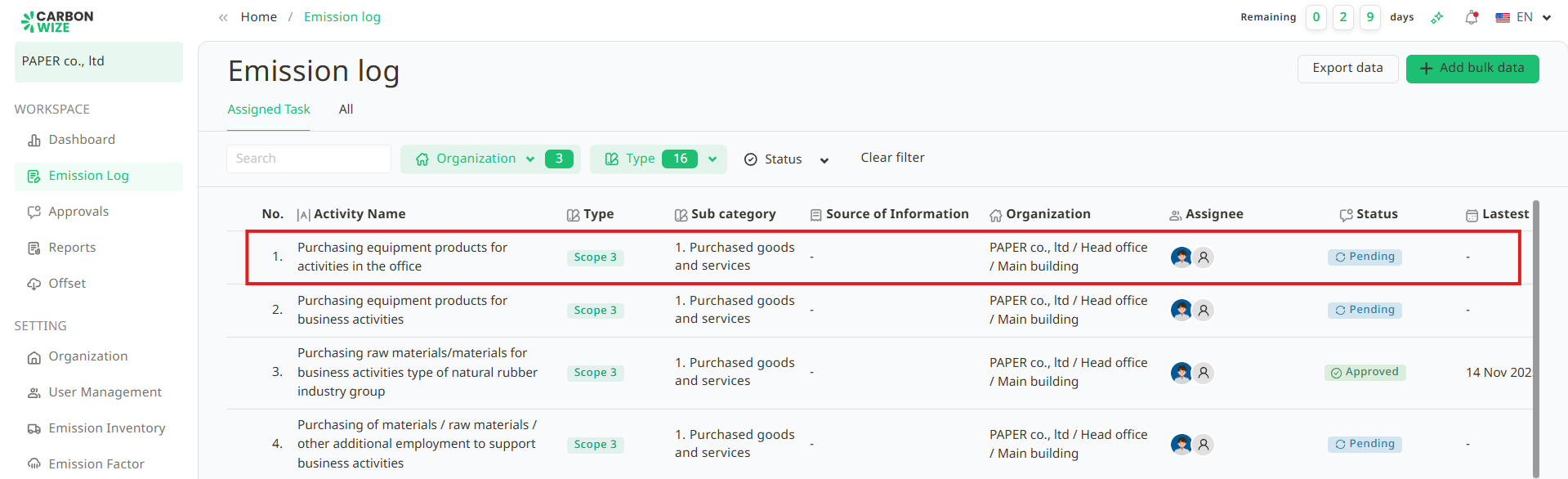
2. Click the Add a new record button.
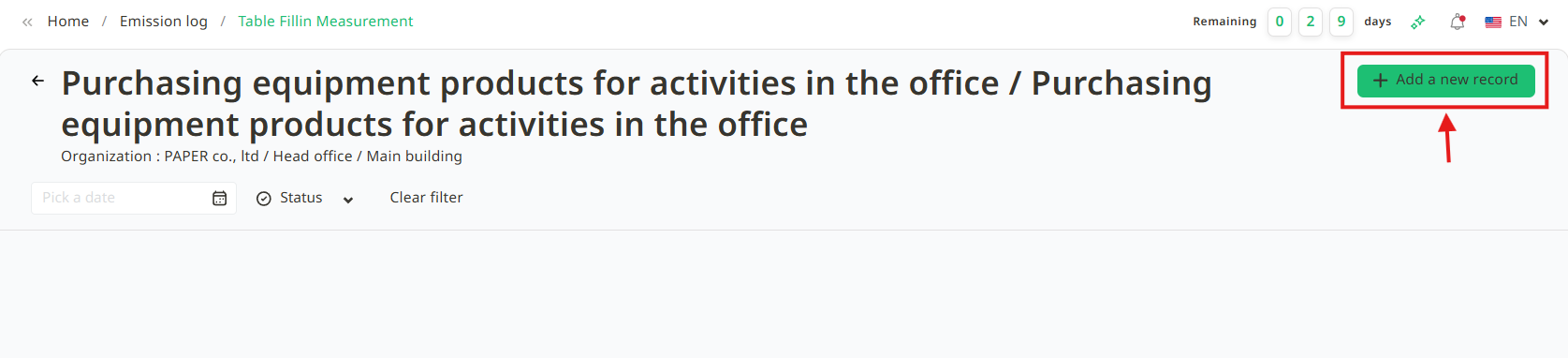
3. Enter the greenhouse gas (GHG) emitting activities resulting from user's business operations. This page will display only the activities assigned to user as a Data Creator.
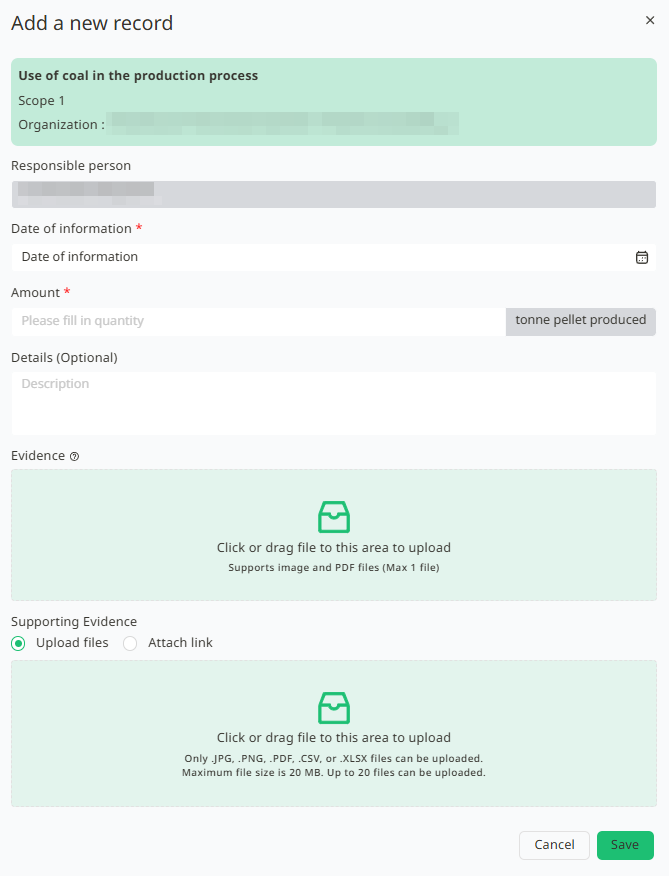
User can upload evidence files. The system will perform an initial automated check to save time during the document verification process.
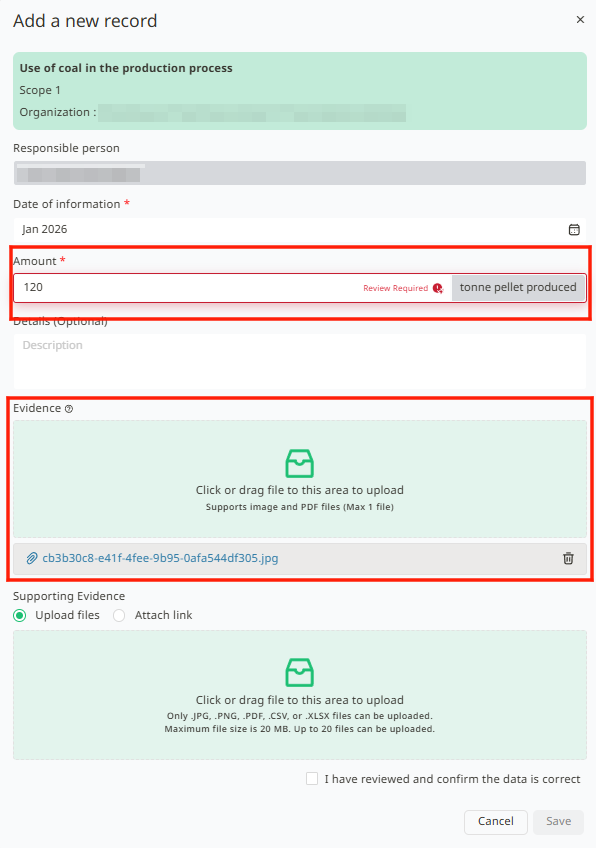
If the data entered does not match the uploaded evidence, the status will show Review require. If user has verified that the figures are correct despite the system's alert, user can click I have reviewed and confirm the data is correct and then click save.
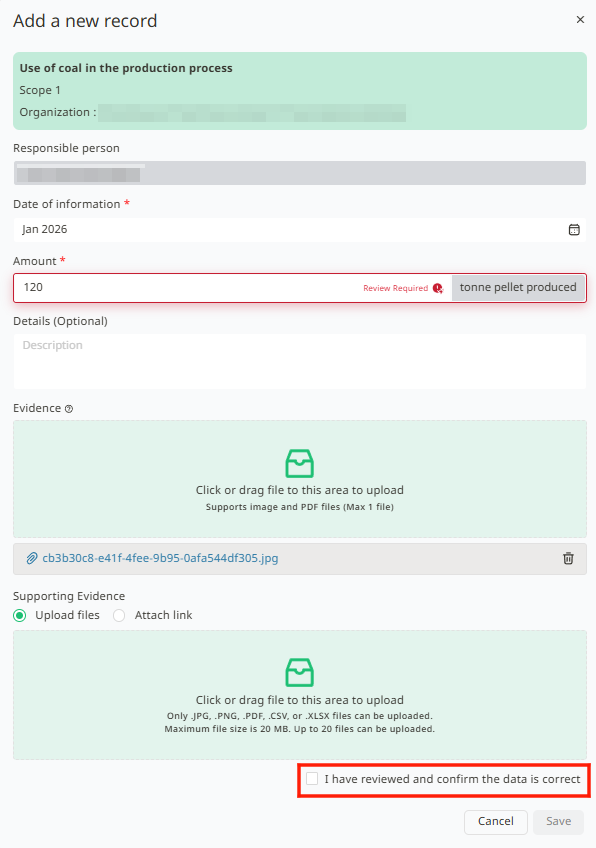
4. Once the data entry is complete, the new record will be in a Pending Approval status. User can view the meaning of this status in Status of emission Inventory.
Was this article helpful?
That’s Great!
Thank you for your feedback
Sorry! We couldn't be helpful
Thank you for your feedback
Feedback sent
We appreciate your effort and will try to fix the article