If an organization needs to add a user who can access the system, user can do so by following these steps:
1. Go to the User Management page.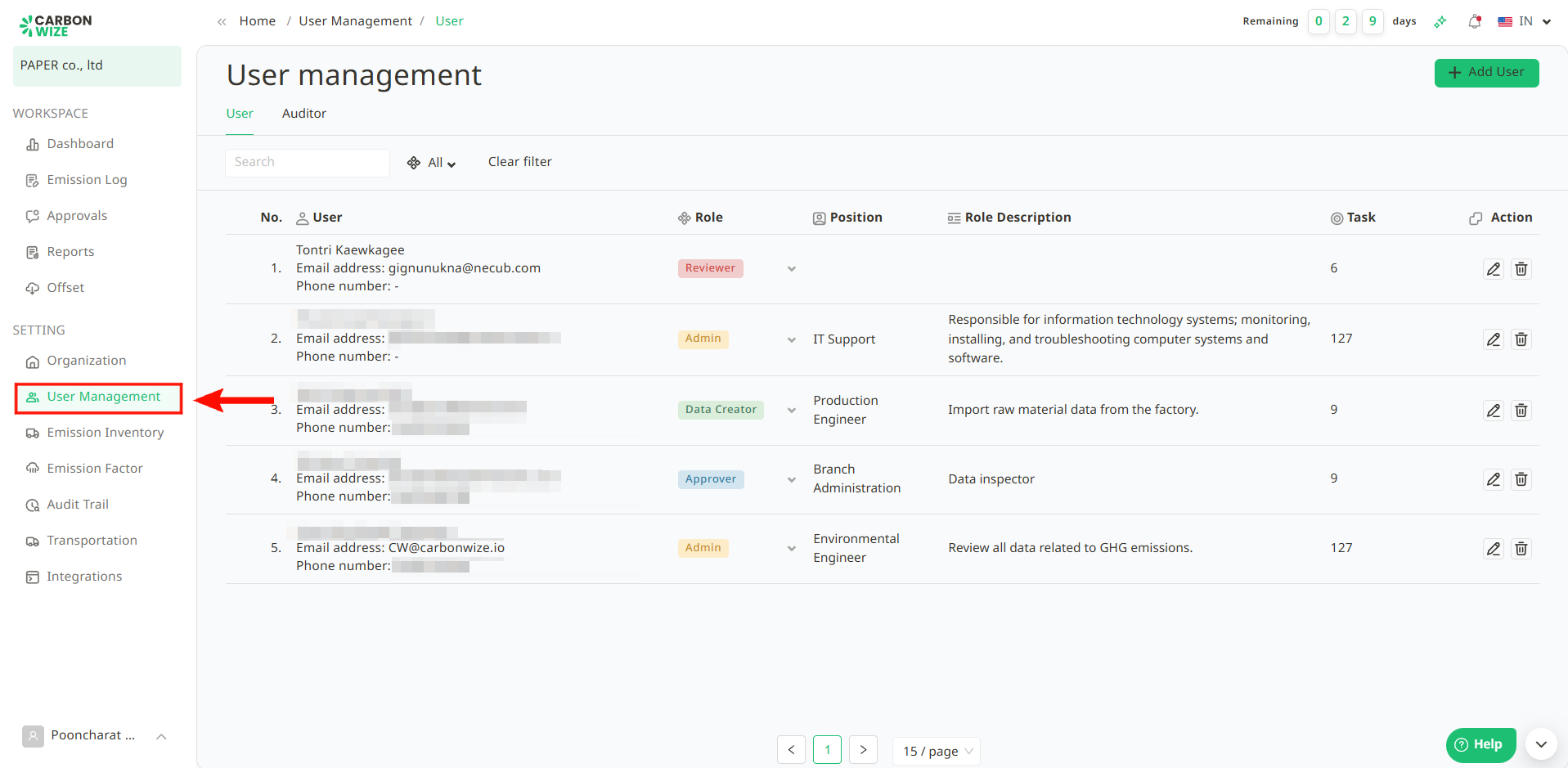
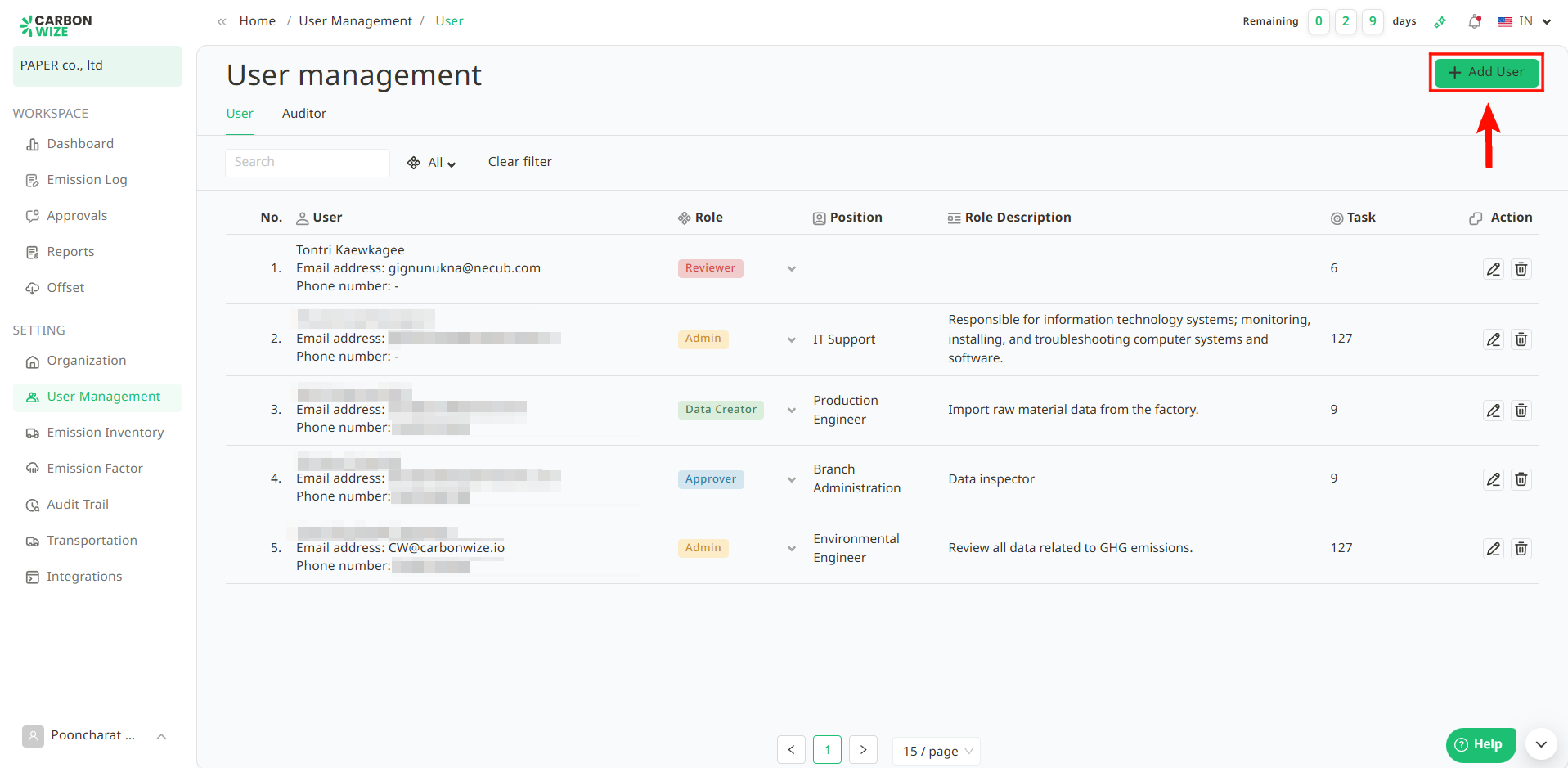
2. Click the + Add User button.
3. The user creation details window will appear. Fill in the user's information as follows :
3.1. First Name
3.2. Last Name
3.3. Email
3.4. Phone Number (Optional)
3.5. Role
- Approver – Can only approve and reject activity items.
- Data Creator – Can only enter, add, modify, and delete assigned activity data.
- Admin – Can enter, add, modify, and delete data for organization settings, activity items, user account management, activity data entry, item approval, Emission Factor selection, and verification.
3.6. Position (Optional)
3.7. Role Description (Optional)
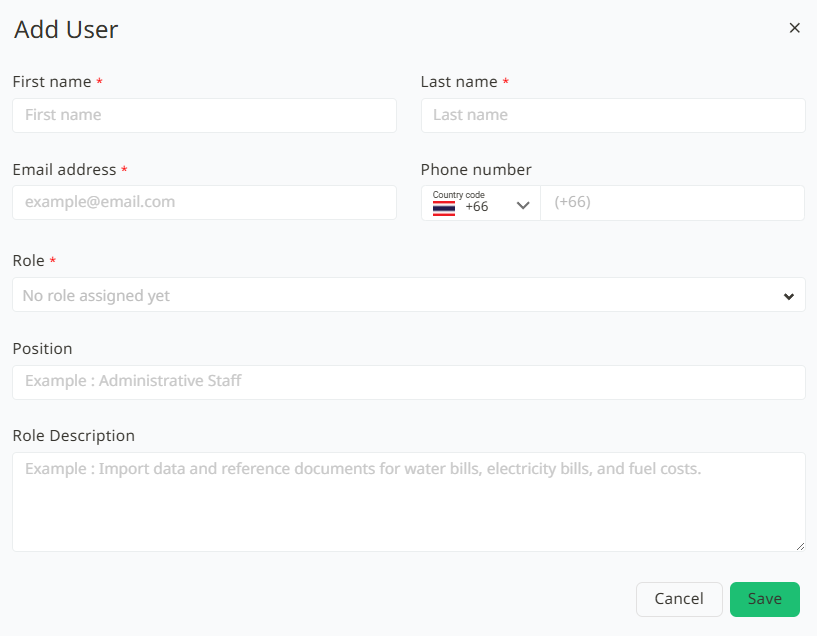
4. Once all the information is filled in, click the Save button.
Was this article helpful?
That’s Great!
Thank you for your feedback
Sorry! We couldn't be helpful
Thank you for your feedback
Feedback sent
We appreciate your effort and will try to fix the article