If an organization want to change a user's role, user can follow these steps:
1. Go to User management menu.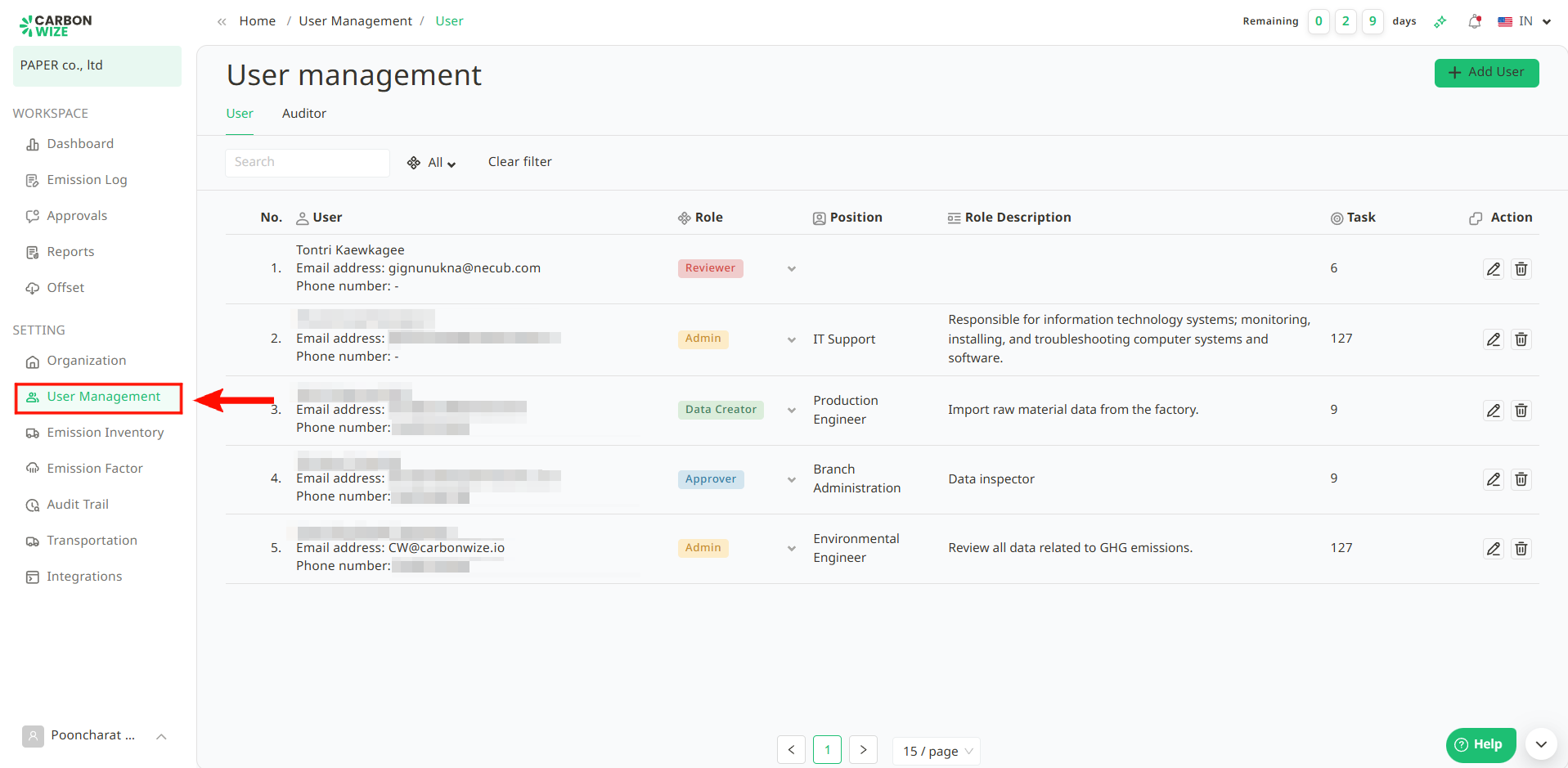
2. Click on the user's current role.
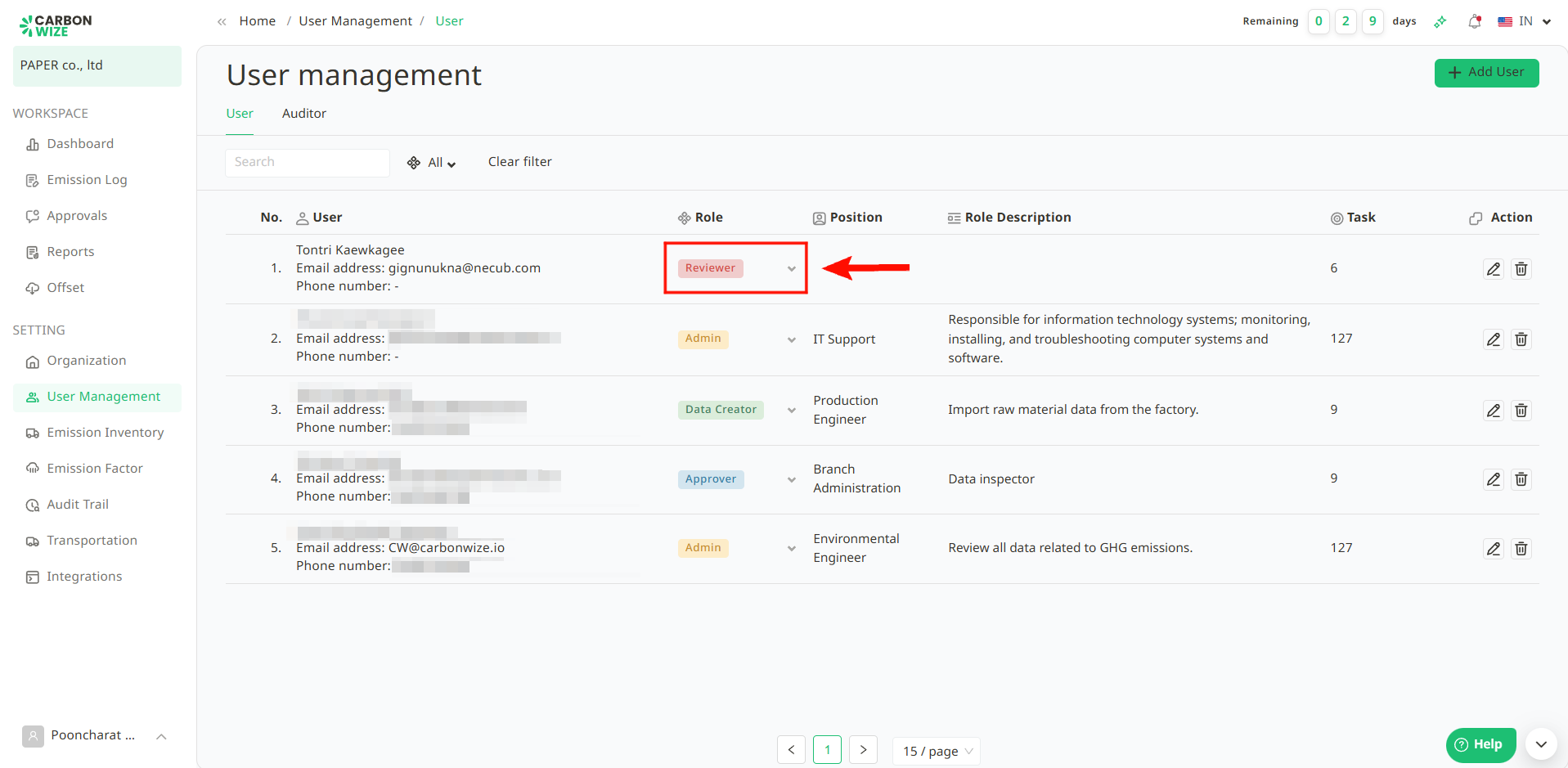
3. A list of Roles will appear, showing three options:
- Approver – Can only approve and reject activity items.
- Data Creator – Can only enter, add, modify, and delete assigned activity data.
- Admin – Can enter, add, modify, and delete data within organization settings, activity items, user account management, activity data entry, item approval, Emission Factor selection, and verification.
4. Once you've selected the new role for the member, a confirmation window will appear to assign the role to the system user. If everything is correct, click the Save button.
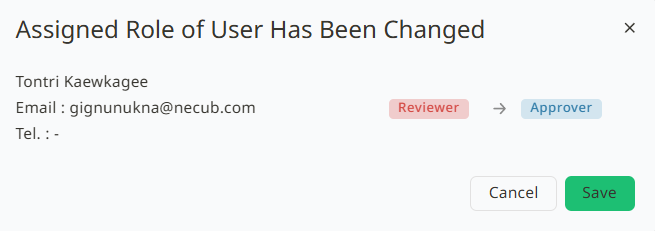
After successfully changing a member's role, The member whose role was changed will no longer be able to use their previous role.
Was this article helpful?
That’s Great!
Thank you for your feedback
Sorry! We couldn't be helpful
Thank you for your feedback
Feedback sent
We appreciate your effort and will try to fix the article