Rejection of activity items requires users with the Admin or Approver roles. If the approver finds that the imported data is incorrect or incomplete, they can click the Reject button to send it back to the data importer for correction or deletion. This can be done by following these steps :
1. Go to Approvals menu.
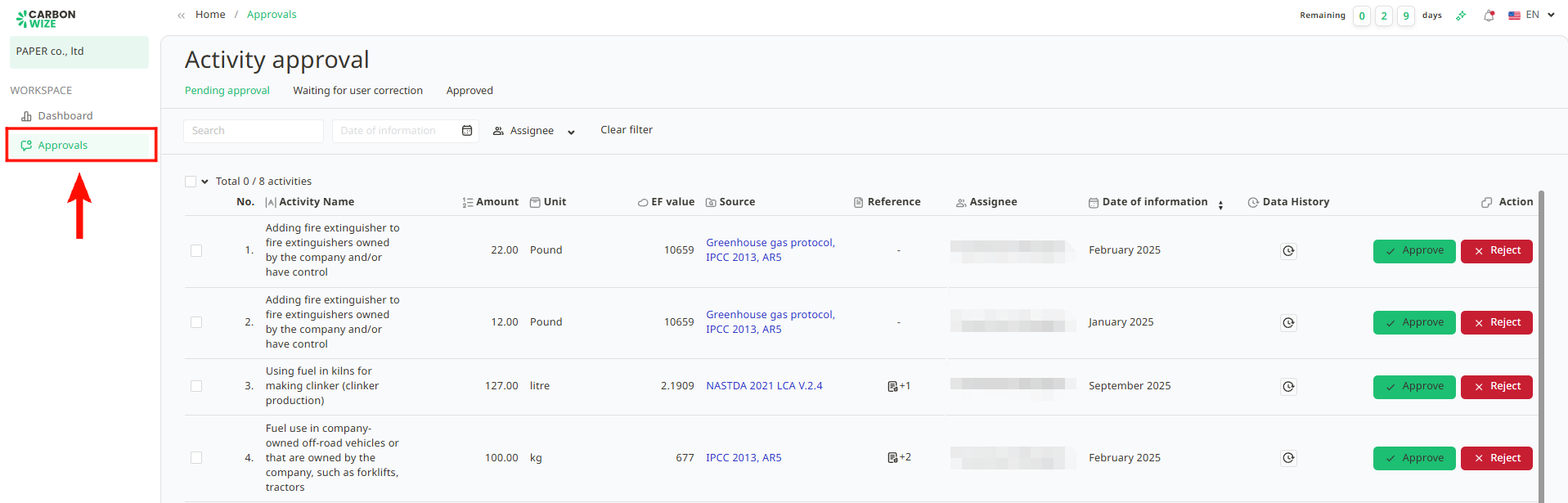
2. Verify the name of the activity item user want to reject.
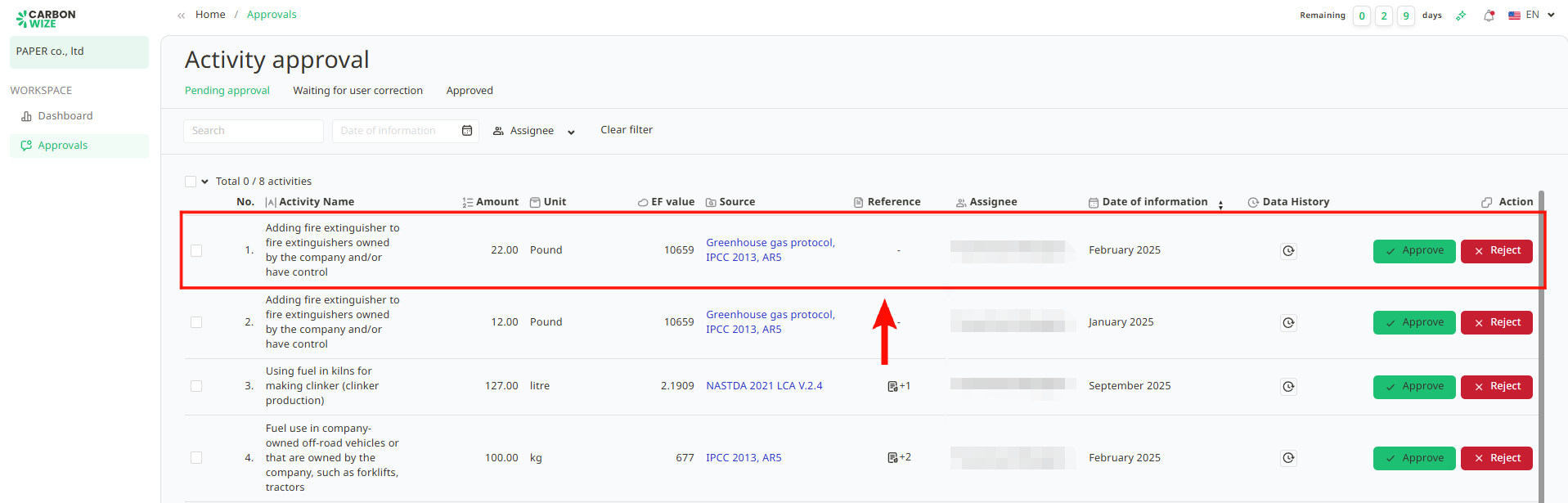
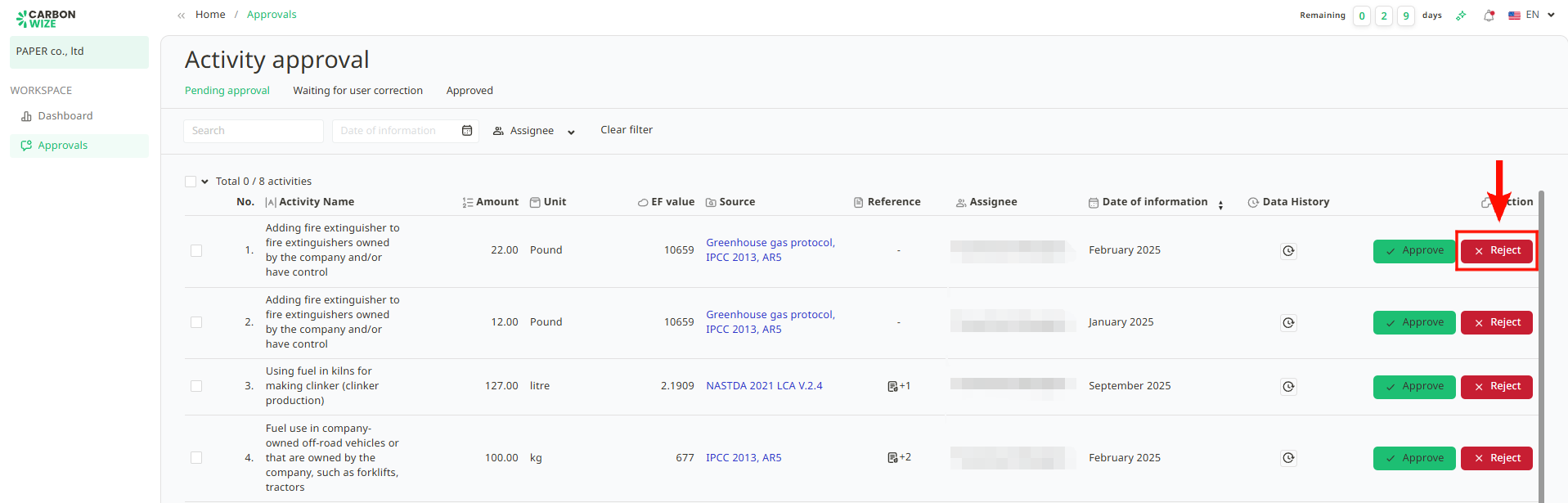
3. Click the Reject button.
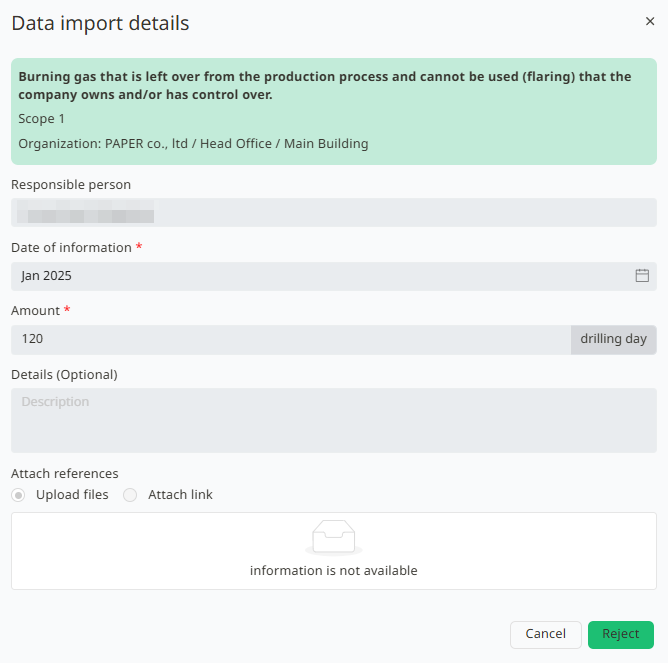
4. The Data Import Details window will appear, allowing the approver to review the Item Name, Data Date, Quantity, Details (if any), and Reference Document (if any).
5. Click the Reject button when the imported data is incorrect or incomplete.
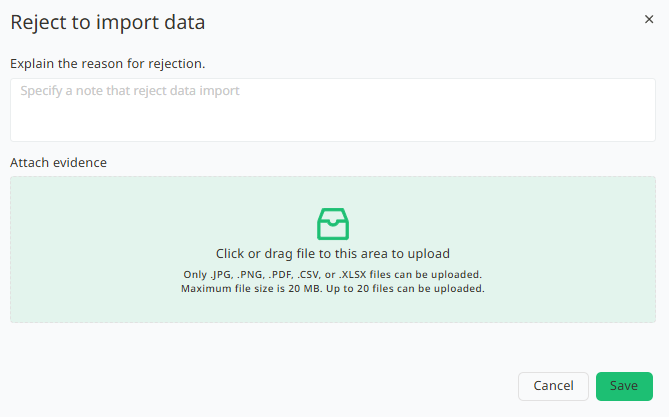
6. The Reject Data Import window will appear. The approver can specify the reason for rejecting the data import and attach supporting evidence.
7. Click the Save button.
8. Once the activity item has been rejected, it will be moved to the Waiting for user correction page.

Was this article helpful?
That’s Great!
Thank you for your feedback
Sorry! We couldn't be helpful
Thank you for your feedback
Feedback sent
We appreciate your effort and will try to fix the article