This role can only approve and reject activity items.
1. Organization Overview Tab
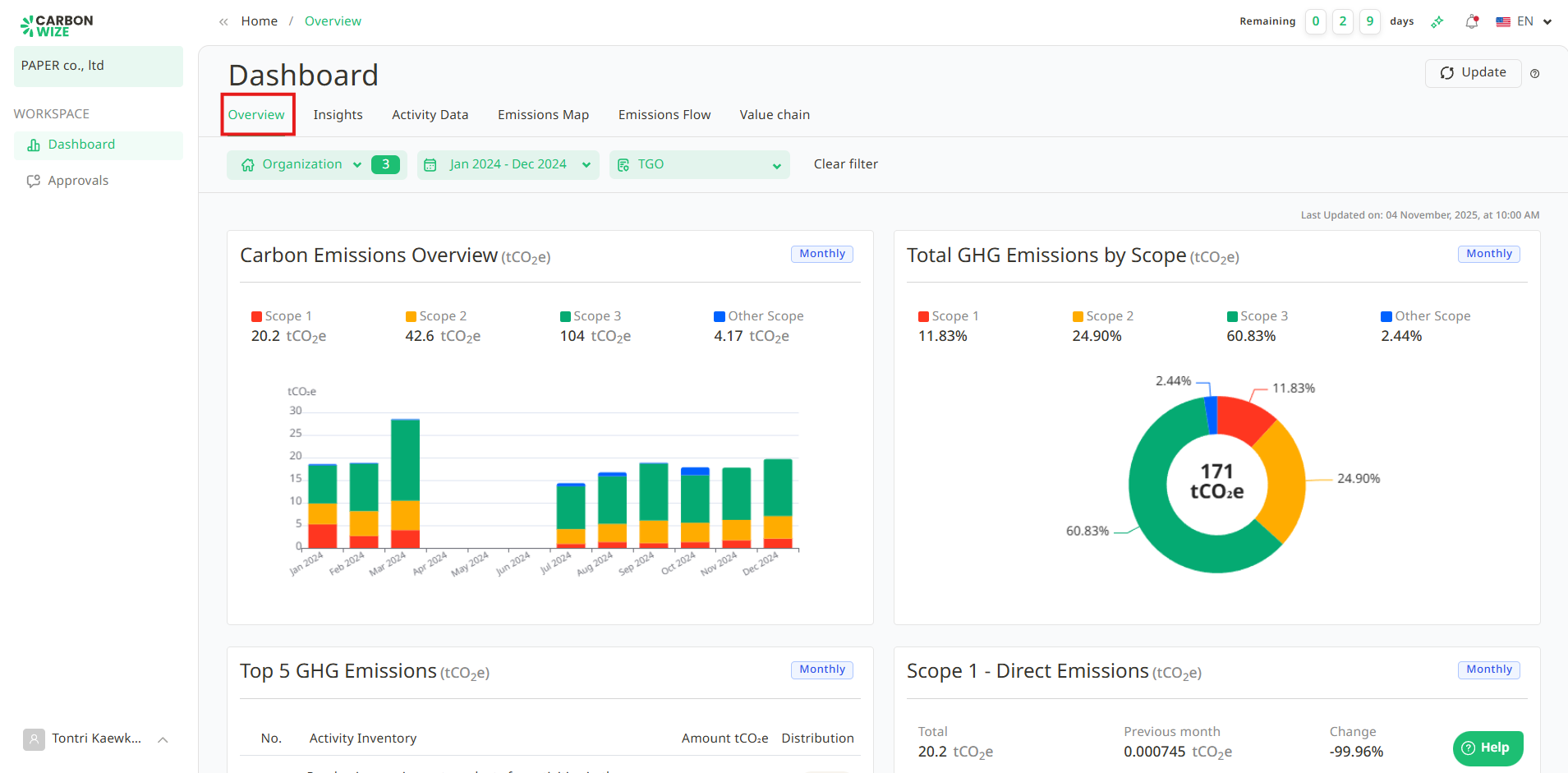
The system analyzes the organization's operational data and presents an overview through charts. It automatically displays calculation data for activity items, mapped factors, and approved items in a total of 6 charts: Greenhouse Gas Emissions by Category, Proportion of Greenhouse Gas Emissions by Category, Top 5 Activities with the Highest Greenhouse Gas Emissions, Direct Greenhouse Gas Emissions - Scope 1, Indirect Greenhouse Gas Emissions - Scope 2, and Indirect Greenhouse Gas Emissions - Scope 3.
The Organization Overview includes 6 sub-tabs :
1.1. Overview Tab
The system will analyze the organization's operational data and display an organizational overview through charts. It will automatically present the calculated data of emission Inventories, mapped factors, and approved items in a total of 7 charts, including:
- Carbon Emissions Overview
- Total GHG Emissions by Scope
- Top 5 GHG Emissions
- Scope 1 - Direct Emissions
- Scope 2 - Indirect Emissions
- Scope 3 - Other Indirect Emissions
- Other Scope - Indirect emissions
1.2. Insights Tab
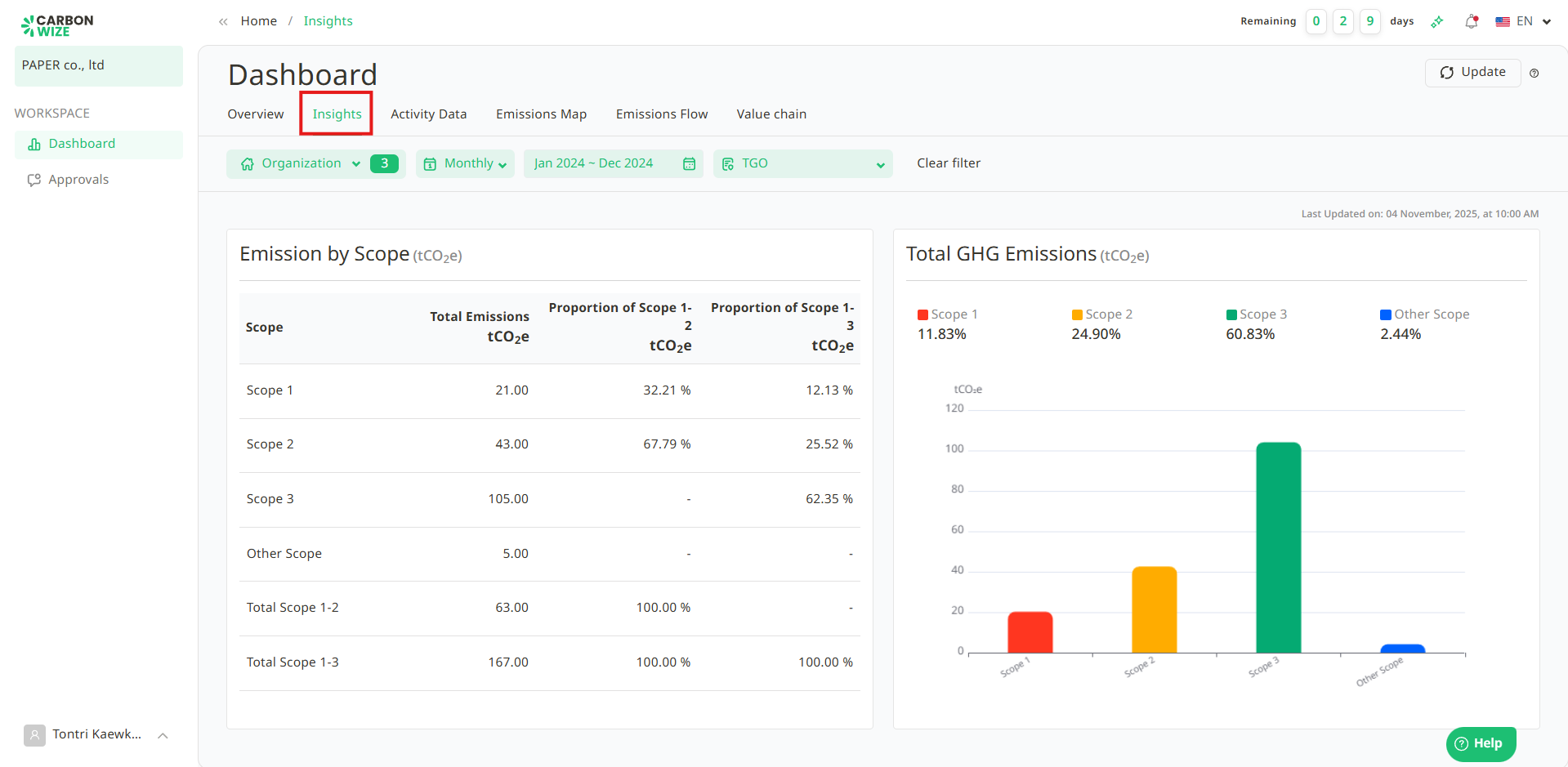
Displays the proportion of greenhouse gases when comparing each scope in percentage (%) format and bar graphs to provide an overview of the emission volume from the organization's various activities.
1.3. Activity Data Tab
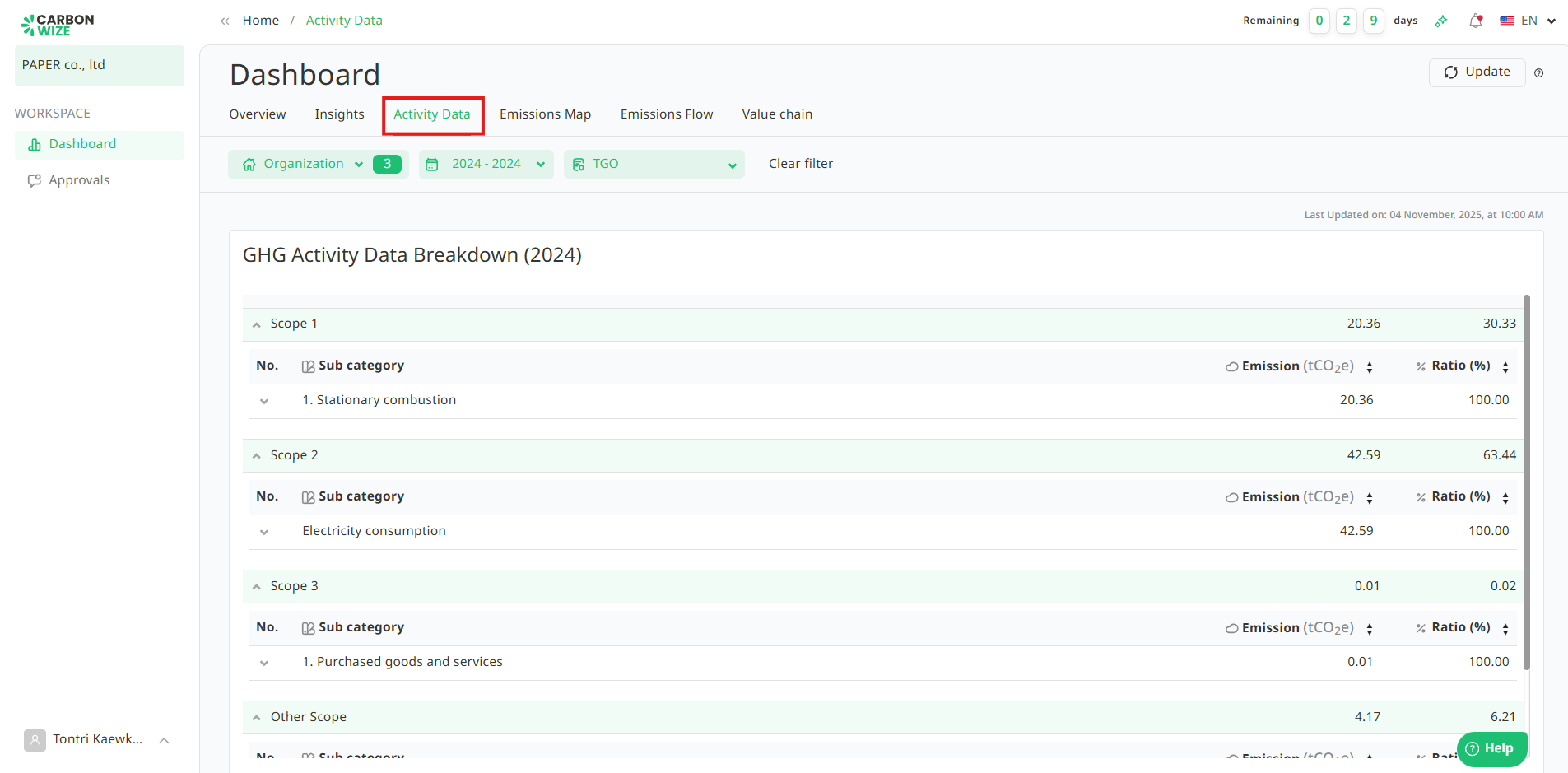
Displays detailed information on greenhouse gas (GHG) emission activities, categorized by the organization's activities.
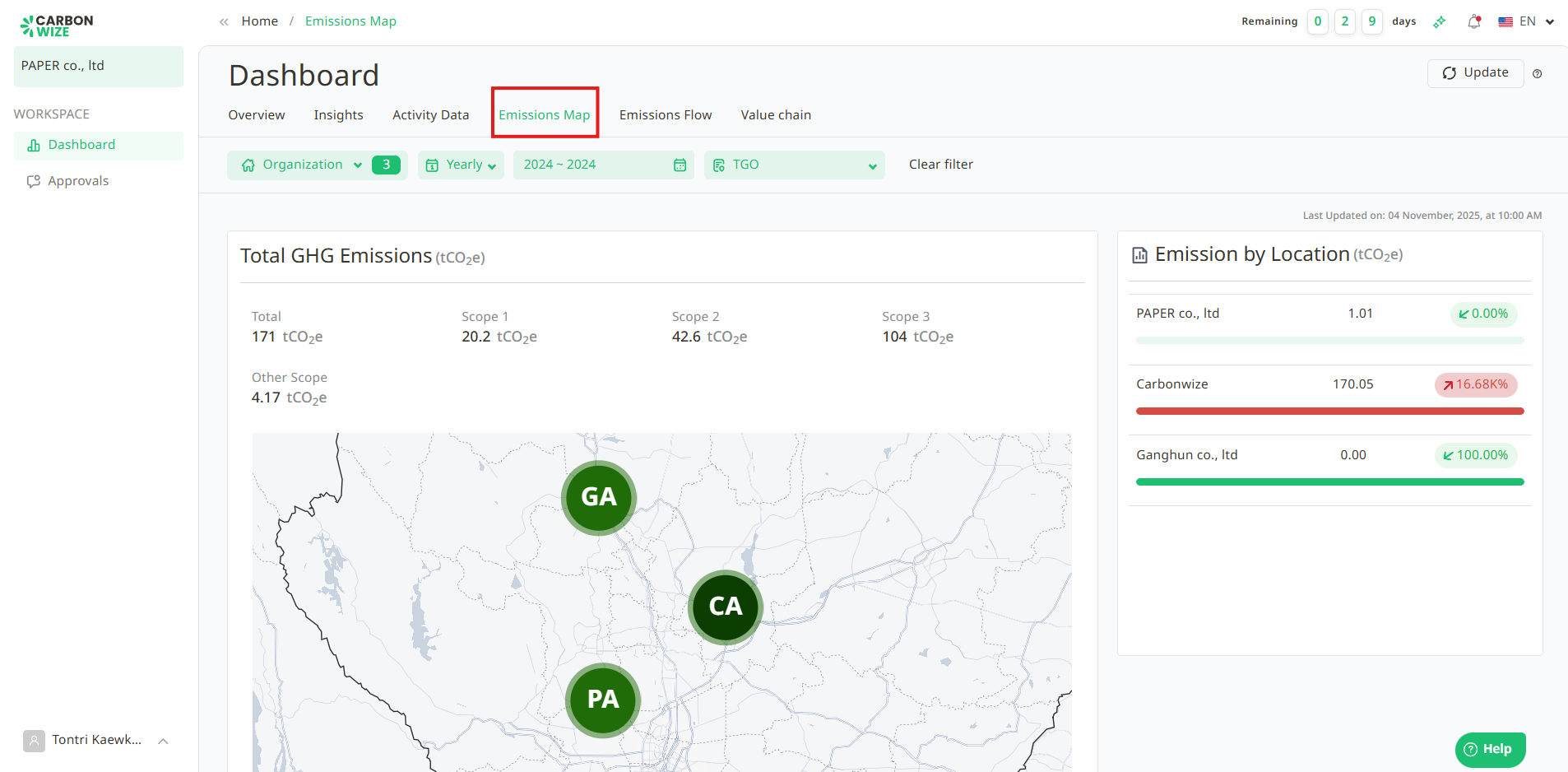
1.4. Emissions Map Tab
This tab displays the greenhouse gas emissions of various organizations on a map. Users can click on the circular icons representing each organization's abbreviation to view a brief overview of their greenhouse gas emissions data.
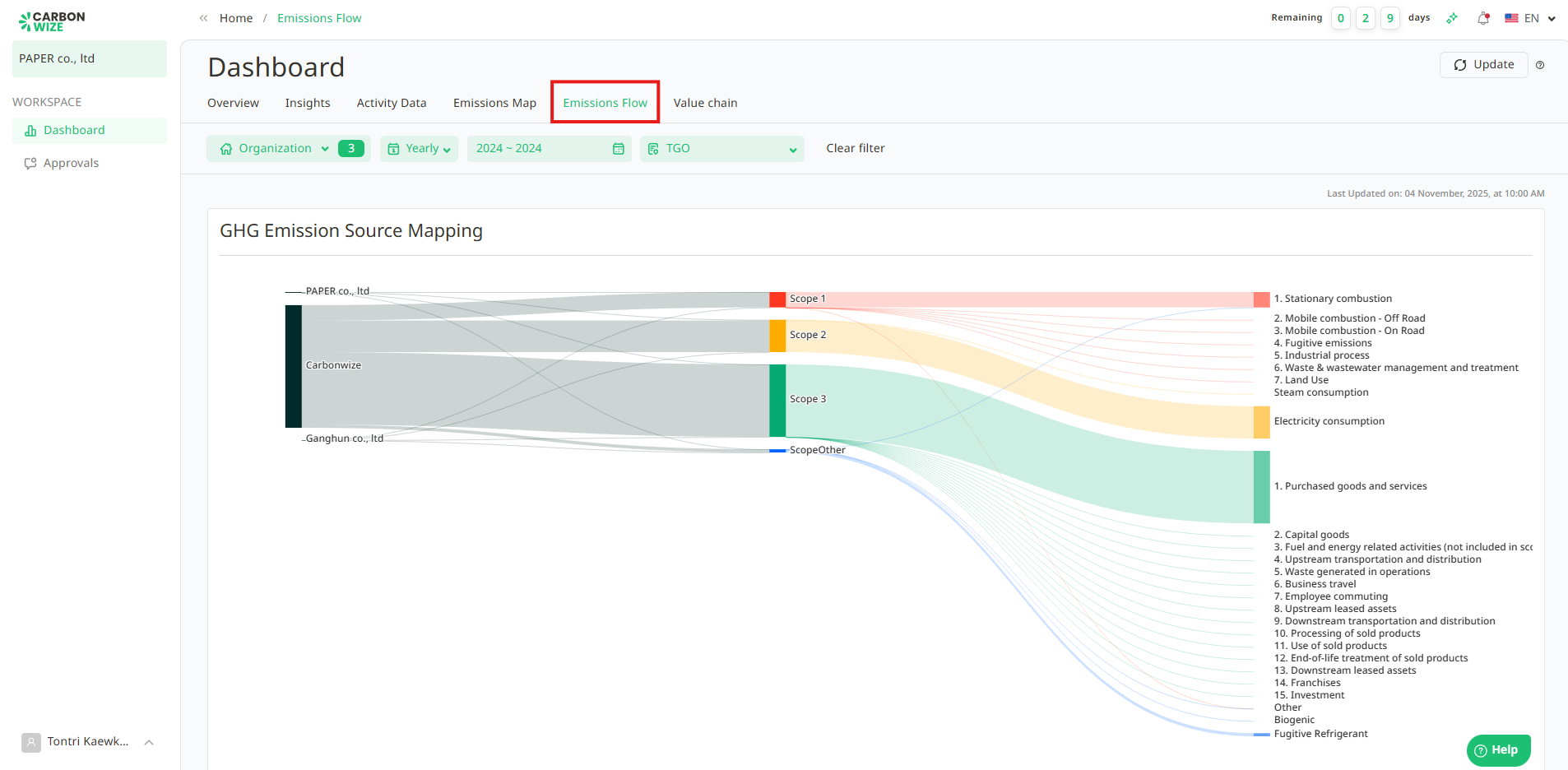
1.5. Emissions Flow Tab
Show GHG Emission Source Mapping.
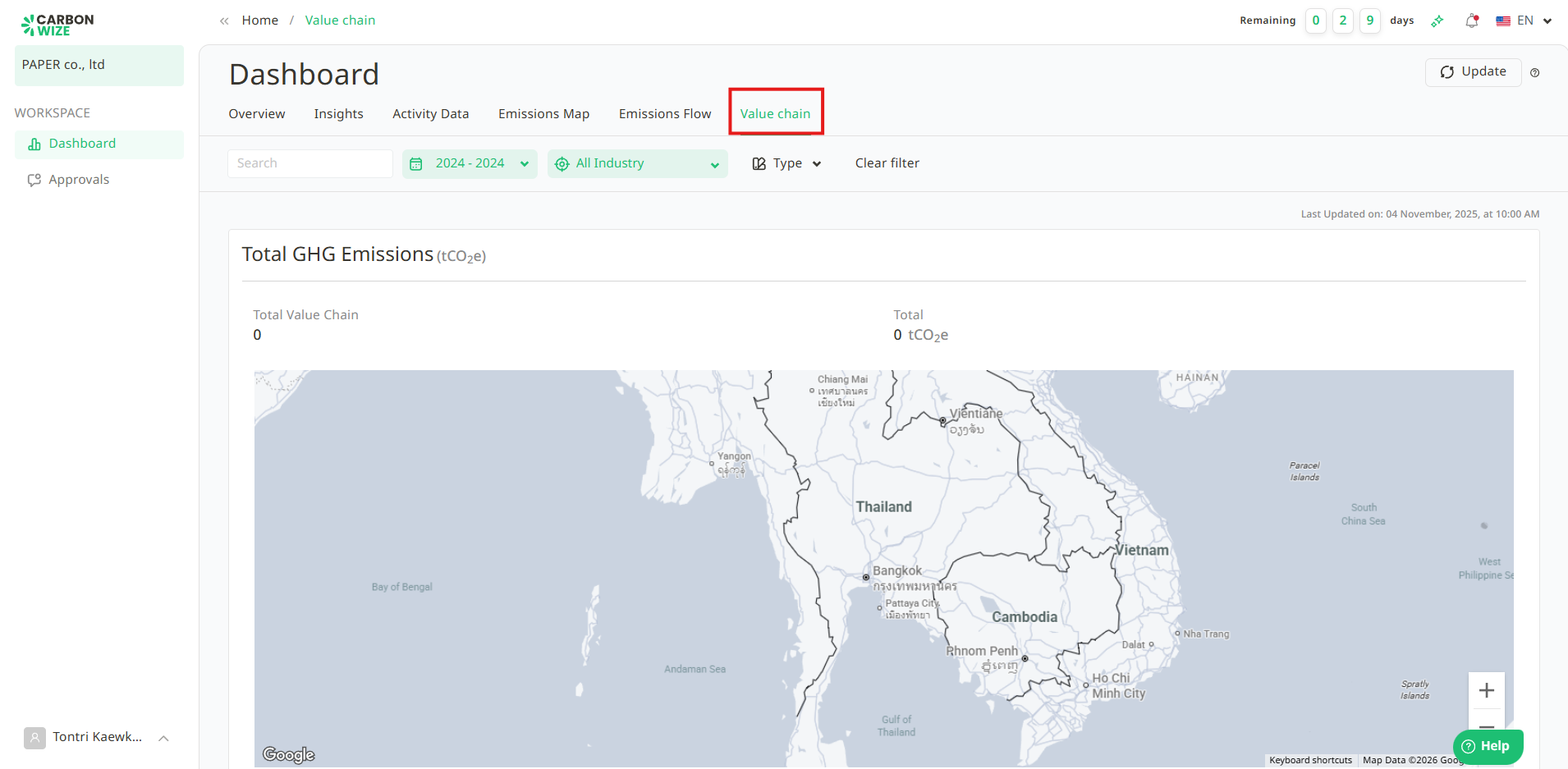
1.6. Value Chain Tab
Displays total GHG emissions and value chain partners. This feature allows for systematic recording and tracking of carbon data across all value chain activities. It provides the lead organization with clear visibility into partner emissions to facilitate efficient analysis, planning, and carbon footprint management.
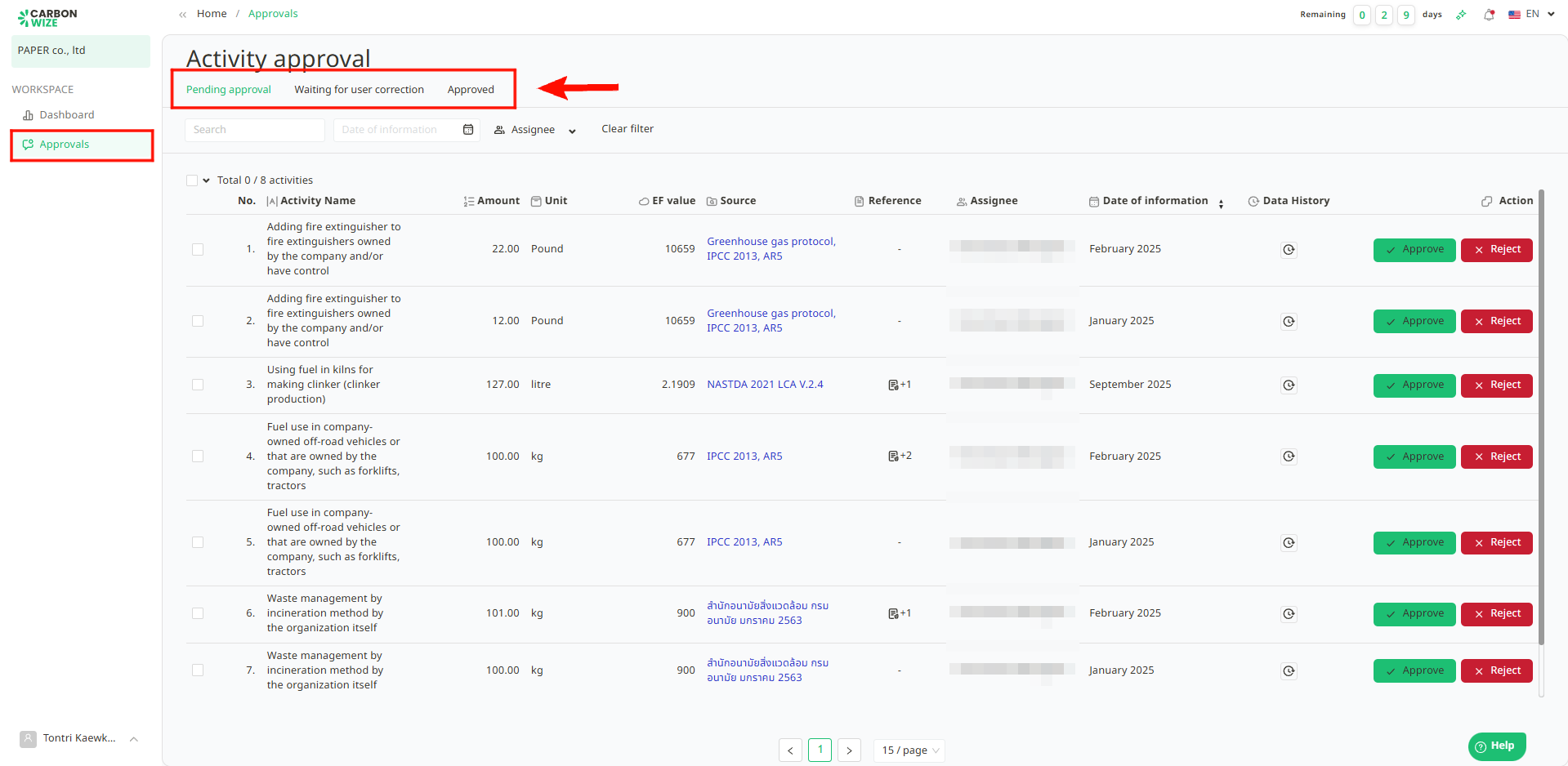
2. Approval Tab
Approval of activity items requires users with the Admin and Approver roles to approve. Once approved, users can edit the approved data, but it will need to go through the Pending Approval process again. For more details, refer to Item Approval Details
The Item Approval page has 3 sub-tabs:
2.1. Pending approval
2.2. Waiting for user correction
2.3. Approved
3. Tab Ask AI
A chatbot that helps answer user questions or find information by clicking the icon in the top right corner of the website.
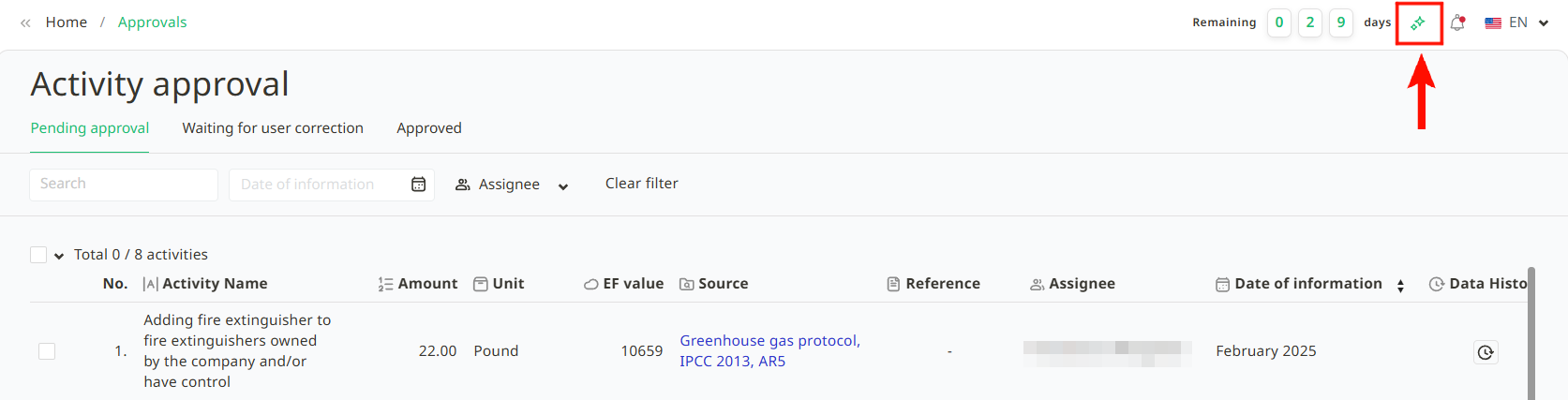
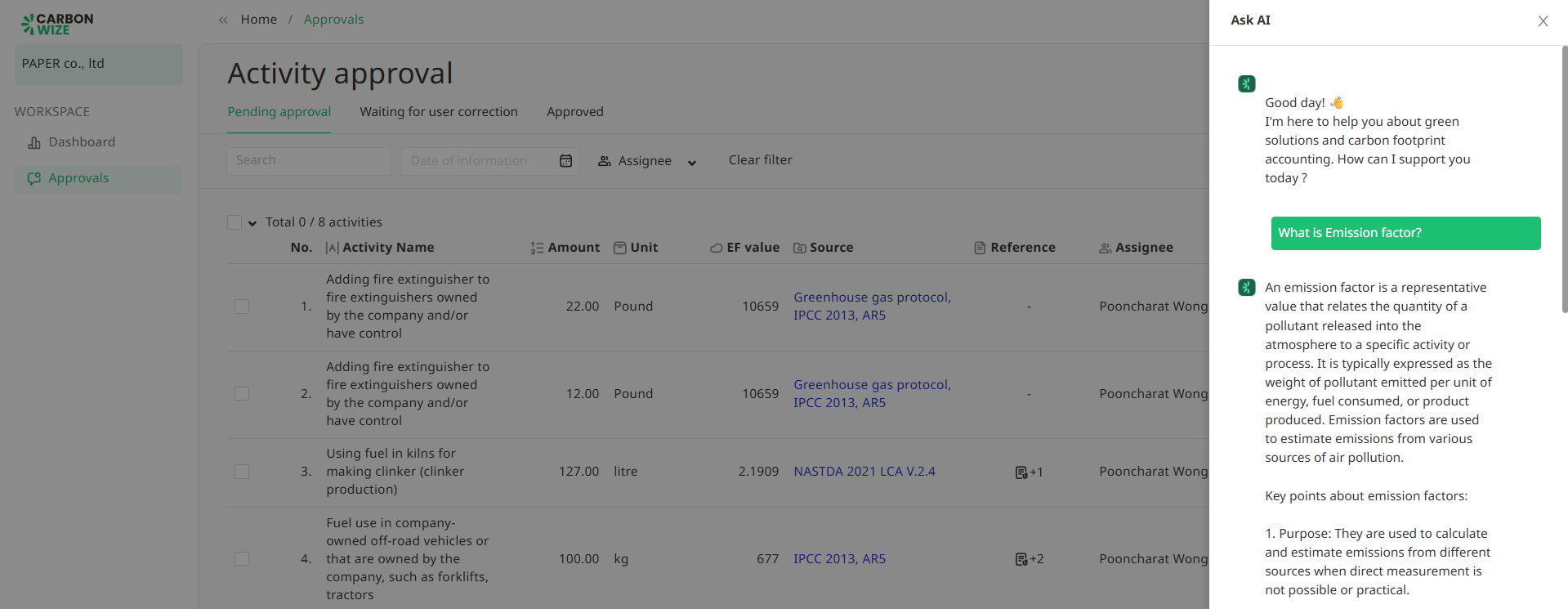
An Ask AI bar will appear. User can type in questions or problems, and the chatbot will help answer them.
Was this article helpful?
That’s Great!
Thank you for your feedback
Sorry! We couldn't be helpful
Thank you for your feedback
Feedback sent
We appreciate your effort and will try to fix the article