Approval of activity items requires users with the Admin or Approver roles. If a user needs to change information, they can edit data that has already been approved, but it will need to go through the Pending Approval process again.
1. Go to Approvals menu.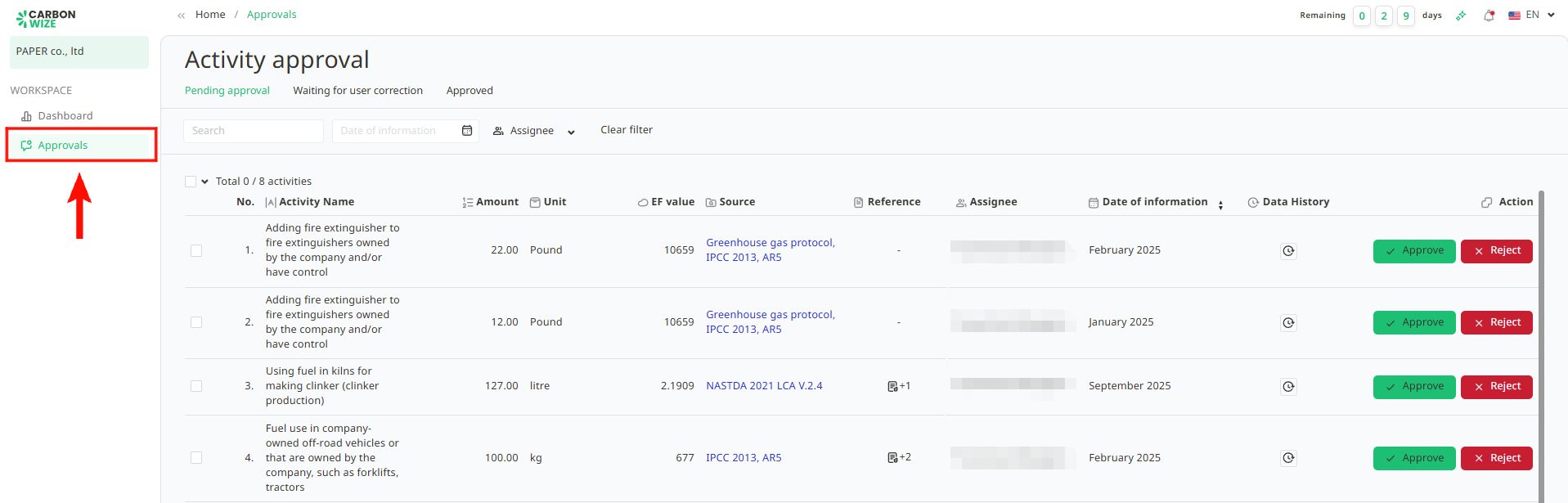
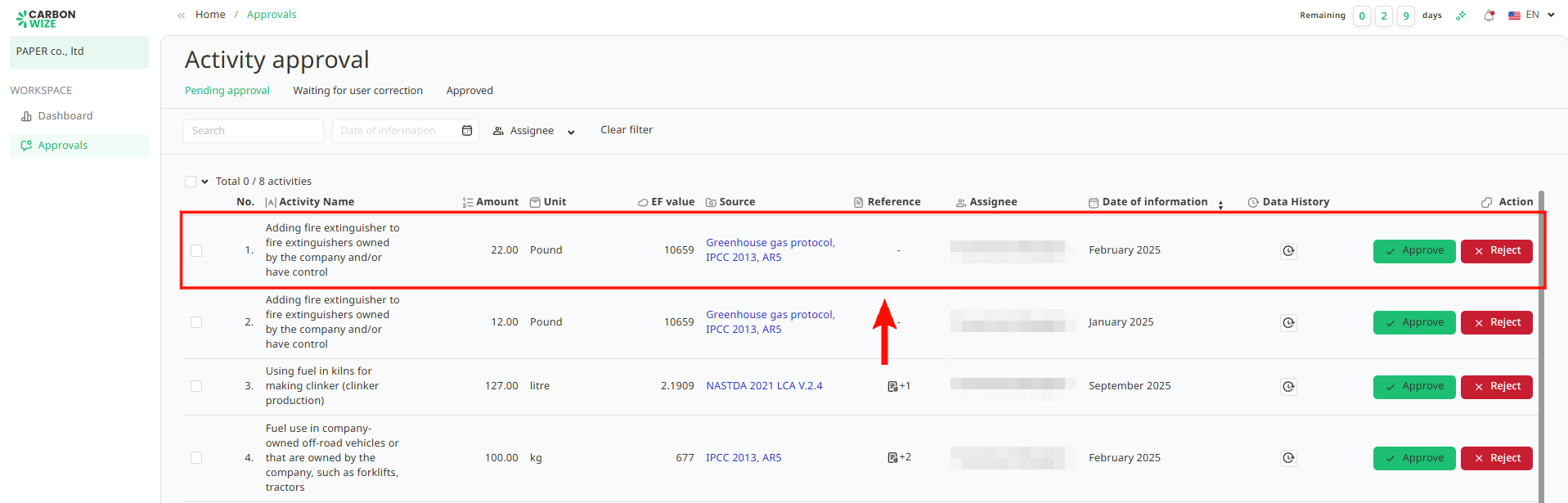
2. Review the items for which user want to approve activity items.
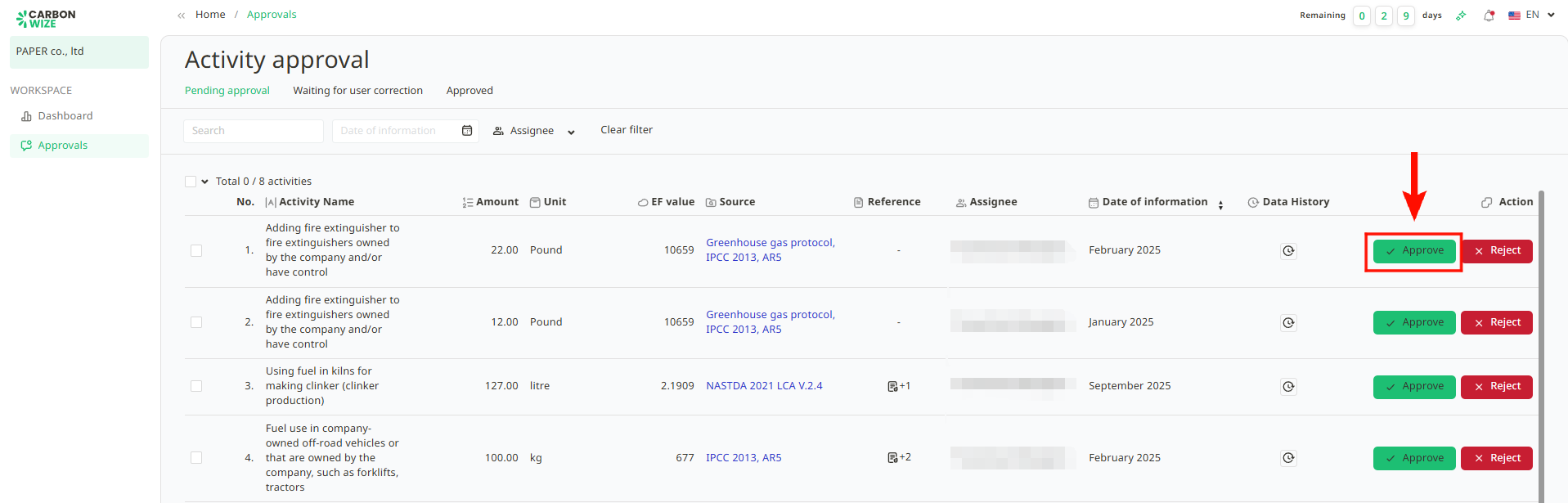
3. Click the Approve button.
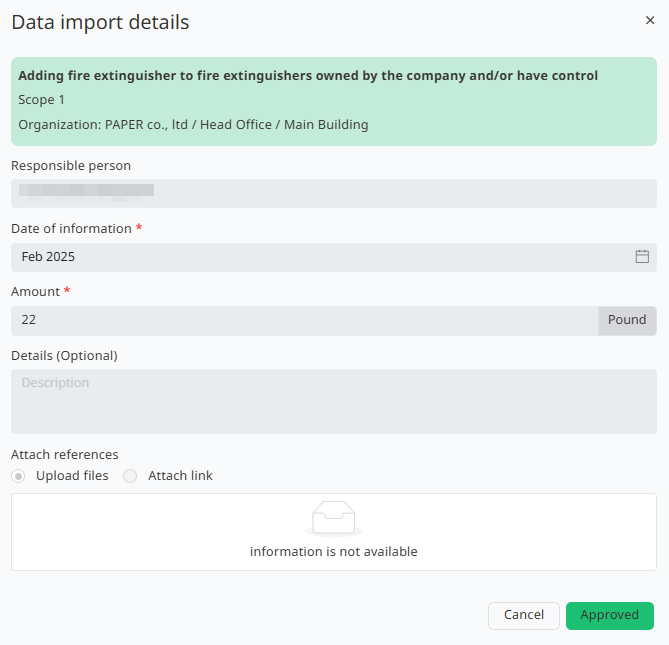
4. The Data Import Details window will appear, allowing the approver to review the Item Name, Data Date, Quantity, Details (if any), and Reference Document (if any).
5. Once user has verified that the information in the activity item is correct and complete, click the Approve button.
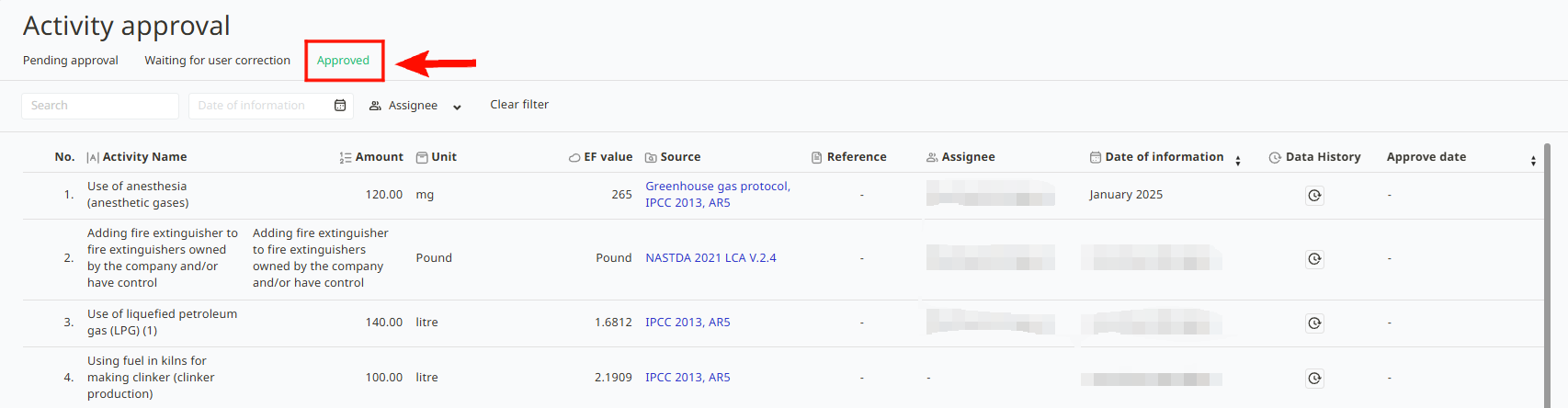
6. After successfully approving the item, it will be moved to the Approved page.
7. Users can view the attached reference document by clicking the Reference Document button as shown in the image below and the data history of the selected activity item by clicking the clock icon. The data history will be ordered chronologically. Users can still edit or delete the data while it is in the pending approval status.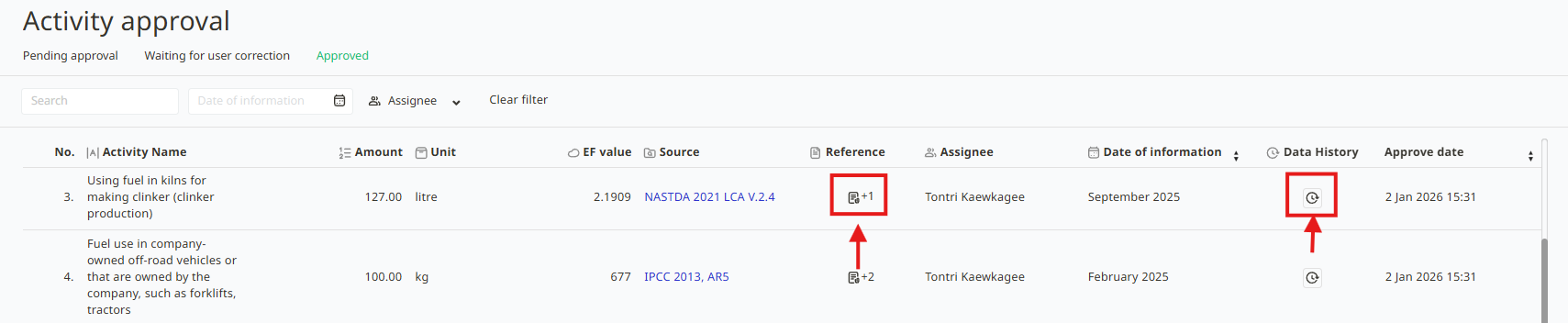
8. Once an item is successfully approved, its status will automatically change to Approved.

Was this article helpful?
That’s Great!
Thank you for your feedback
Sorry! We couldn't be helpful
Thank you for your feedback
Feedback sent
We appreciate your effort and will try to fix the article