If users want to change password, users can follow these steps:
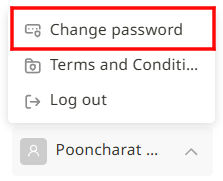
1. Hover the cursor over the username button located in the bottom left corner.

2. A drop-down menu will appear. Click the Change password button.
3. The system will take the user to a profile page. From there, users can click the Change Password button.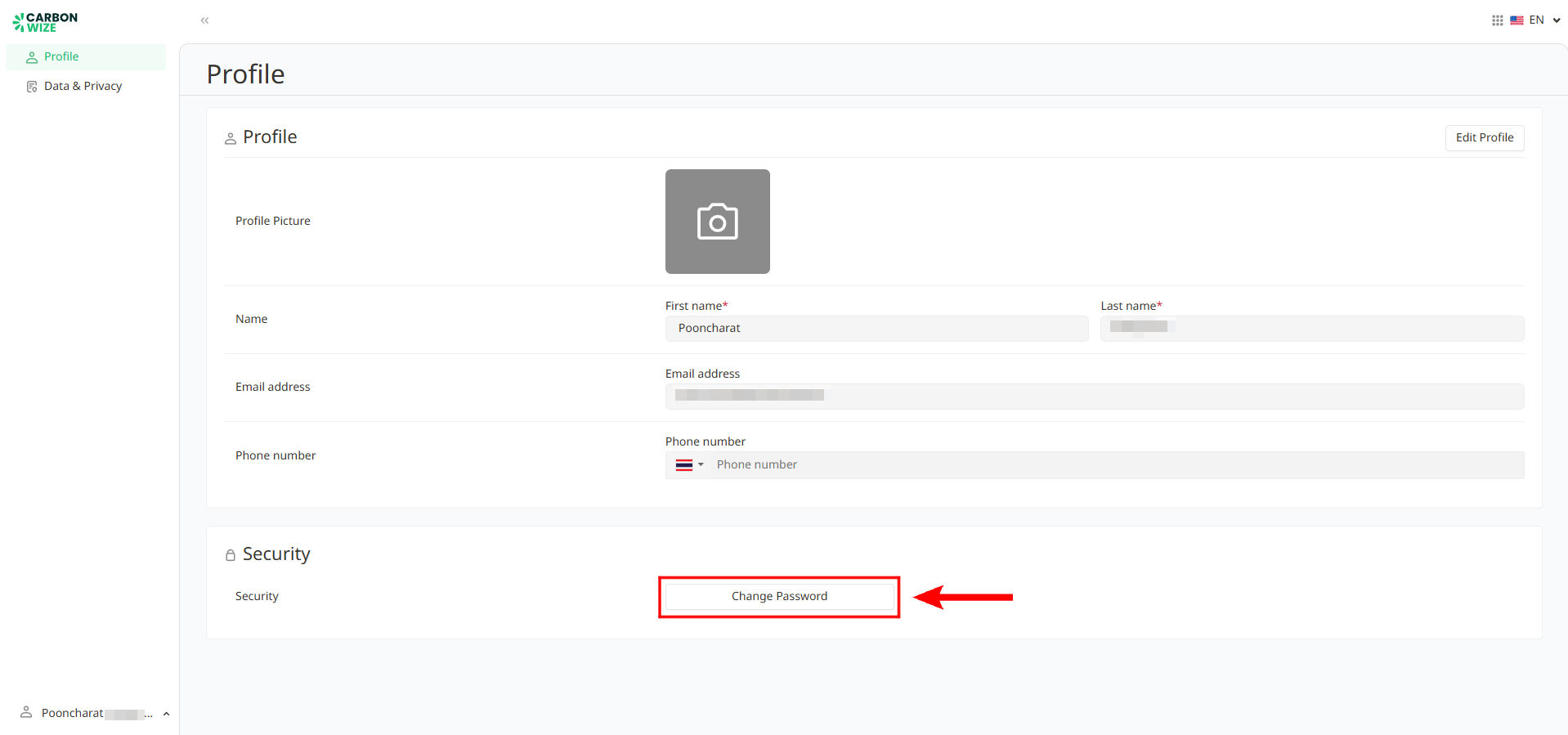
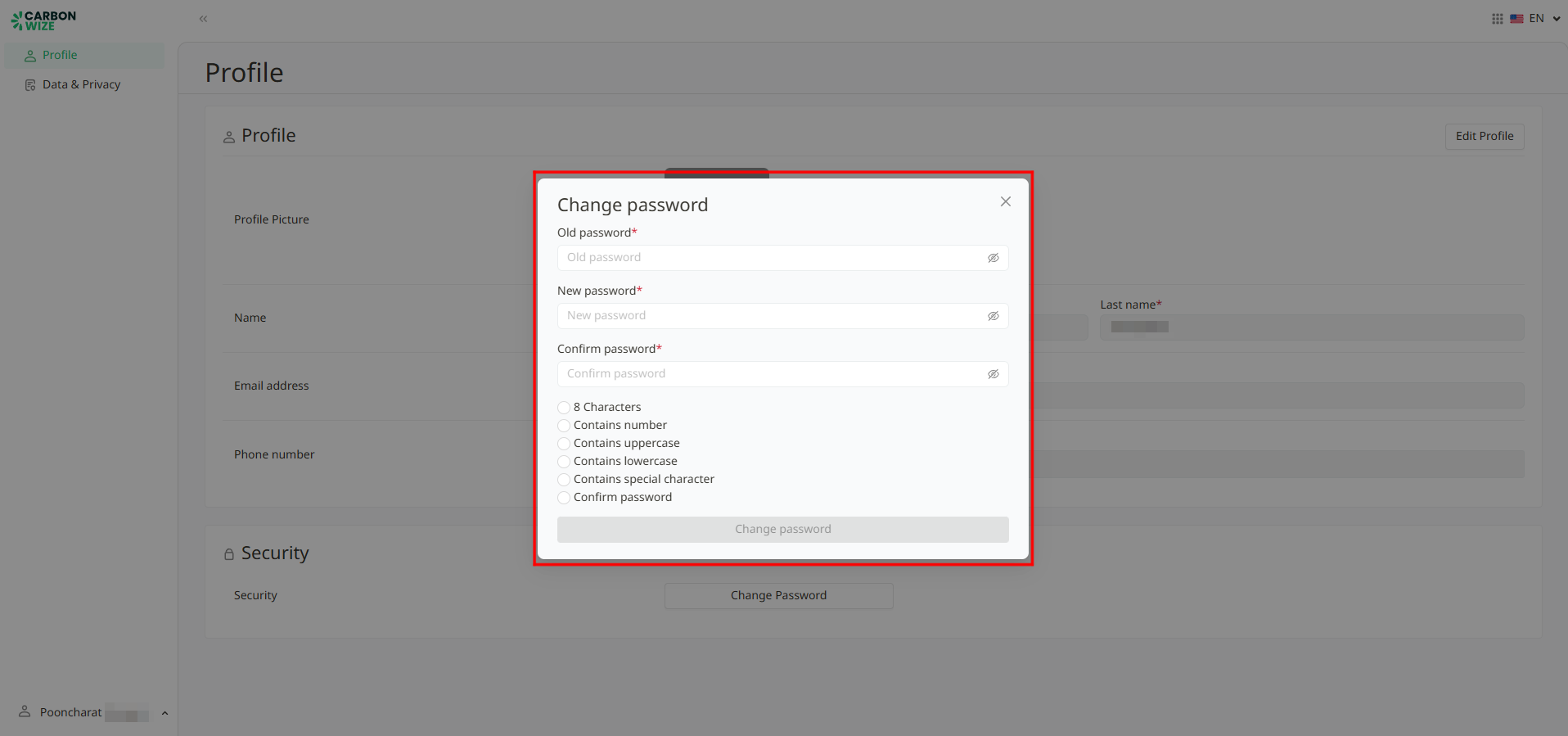
4. Enter old password, new password, and confirm the new password. The new password and the confirmation password must be identical. Then click the change Password button.
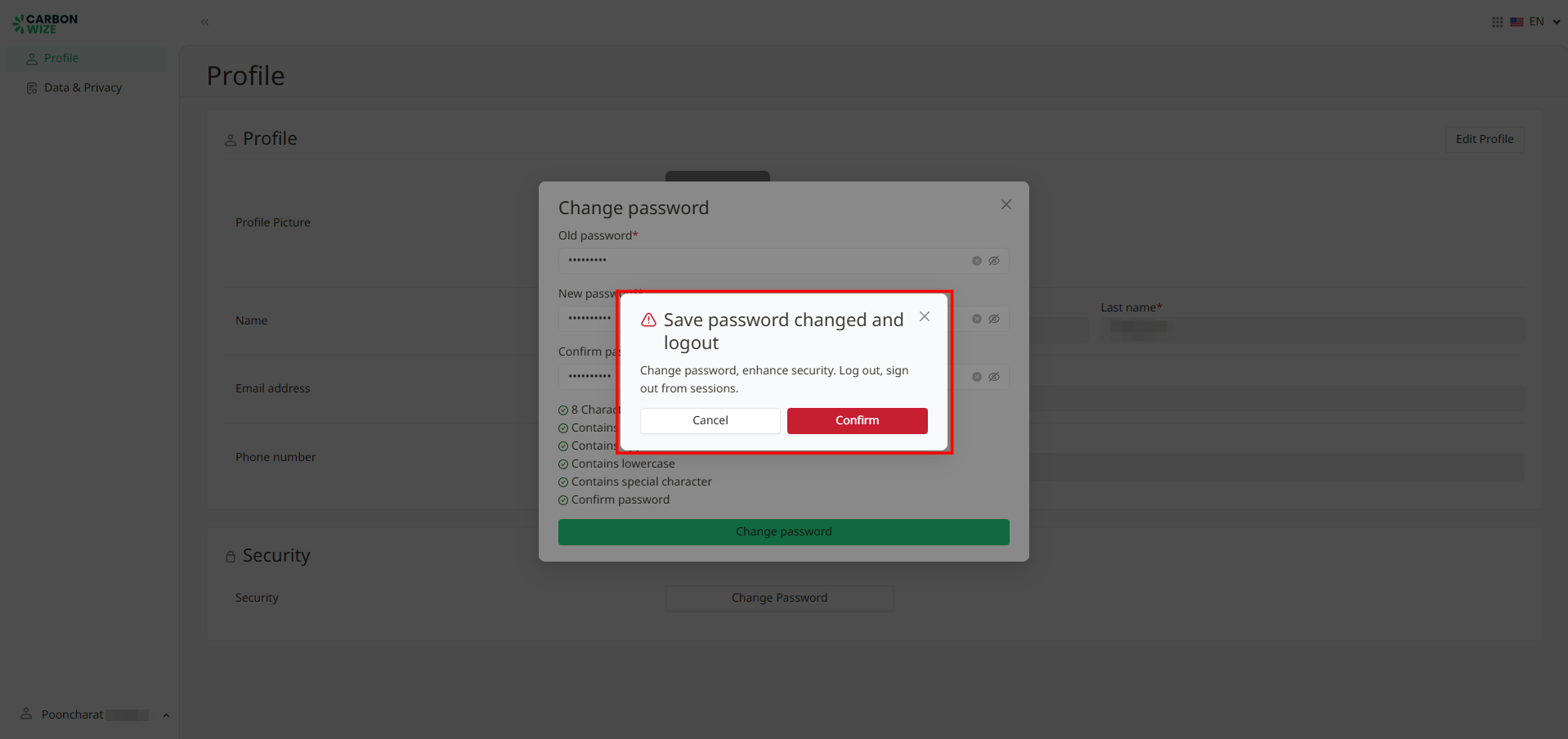
5. After clicking the change Password button, a password change confirmation window will appear. If user want to use the entered password, click OK to confirm the change. However, if user want to go back and edit, user can click the close button (X) or Cancel button on the window.
6. The system will automatically log users out. Users can log in again using the new password.
Was this article helpful?
That’s Great!
Thank you for your feedback
Sorry! We couldn't be helpful
Thank you for your feedback
Feedback sent
We appreciate your effort and will try to fix the article