If users need to create a new verification, all items must have complete information and attachments, and all verification items must have been approved beforehand by following these steps :
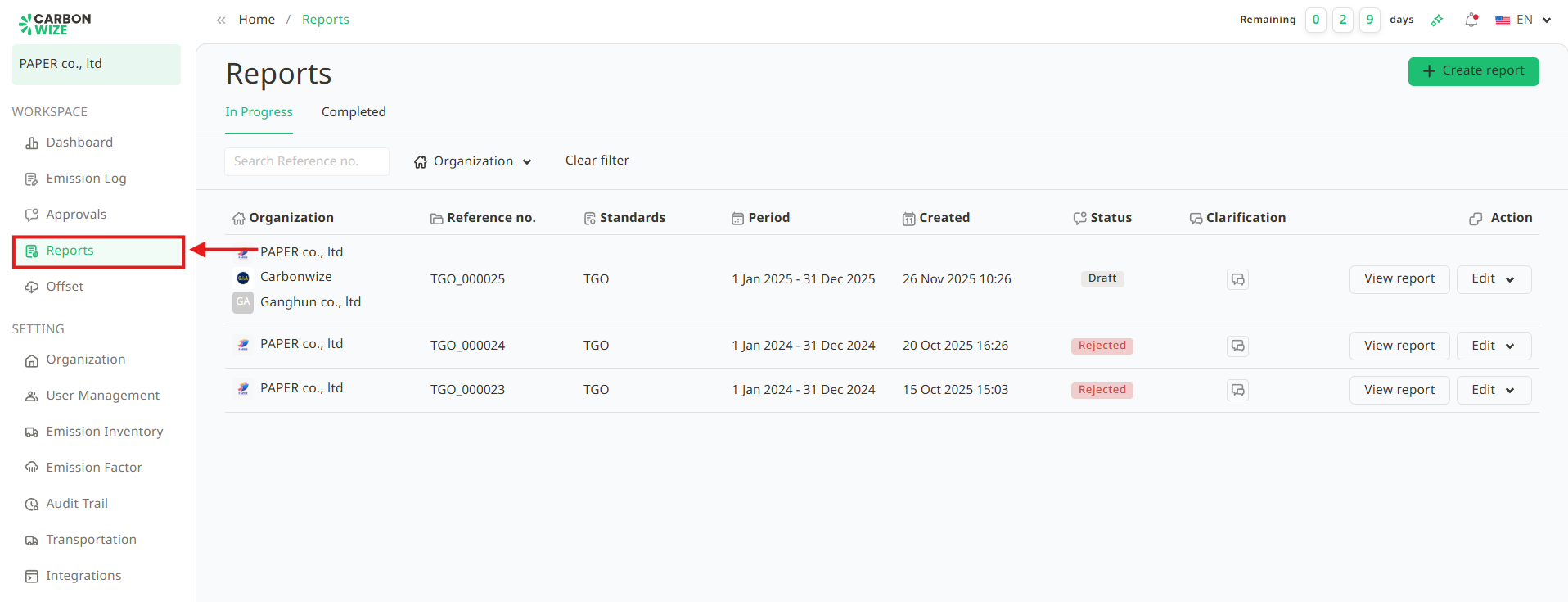
1. Go to Report menu.
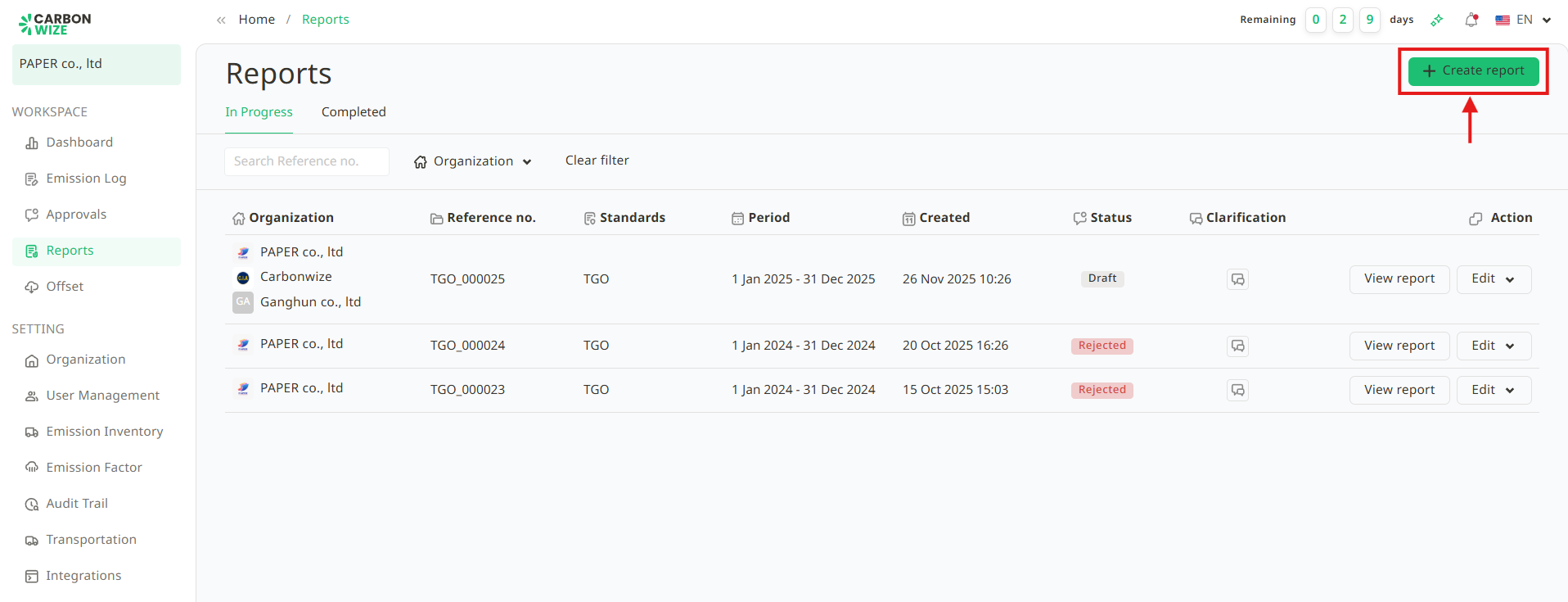
2. Click the + Create report button.
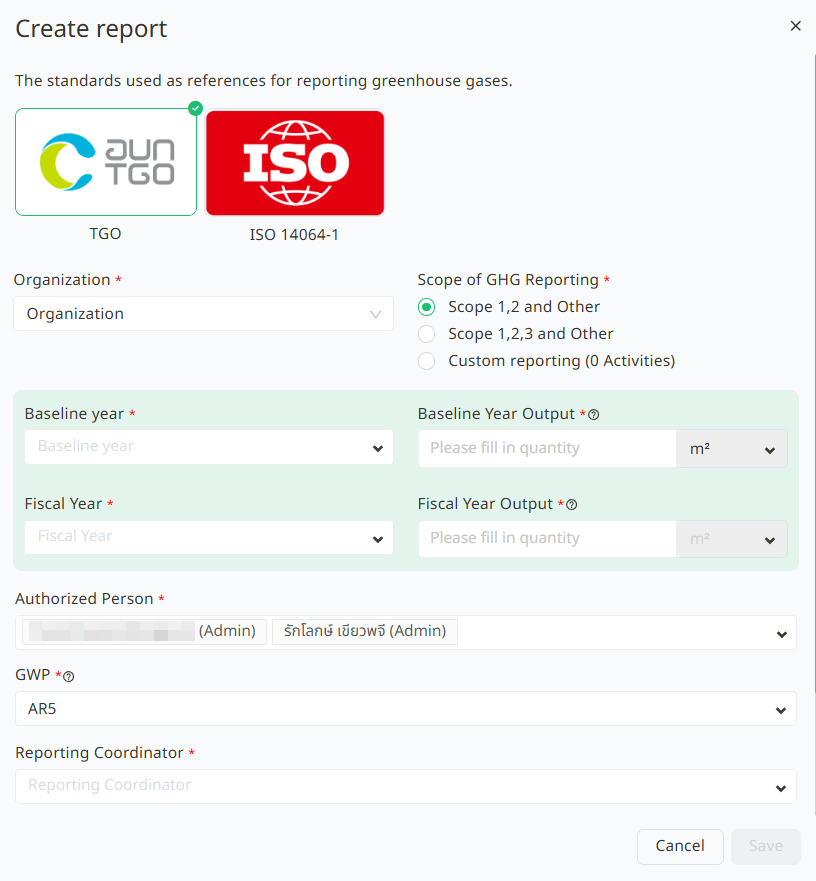
3. Fill in the verification information completely, including :
3.1. Organization.
3.2. Scope of GHG Reporting.
3.3. Baseline year and Fiscal Year.
3.4. Authorized Person.
3.5. GWP
3.6. Reporting Coordinator.
3.7. Level of Assurance :
- Limited Assurance – A verification where only significant aspects of the assessment and reporting process are reviewed and corrected.
- Reasonable Assurance – A verification where the greenhouse gas inventory data, measurement methods, calculations, and report preparation are reviewed based on the requirements of the organizational carbon footprint assessment guidelines or international standards. Any errors or exceptions identified within the assessment report have been corrected or clarified with the auditor.
3.8. Materiality Level – Defines the level of data inconsistency that could cause the greenhouse gas assessment to be misstated and affect users by no more than a specified percentage of the total amount of greenhouse gas reduced or removed.
4. Click the Save button.
5. Once the verification is successfully created, information such as Reference Number, Verification Standard, Data Collection Period, Created On, Status, and Explanation will be displayed. The verification status will be Draft, and users can view the report, edit, configure verification settings, and delete the verification report.

Was this article helpful?
That’s Great!
Thank you for your feedback
Sorry! We couldn't be helpful
Thank you for your feedback
Feedback sent
We appreciate your effort and will try to fix the article