Only users with an Admin role can edit the details of an organization, branch, or building. To do so, click on the pencil icon located behind the name of the organization, branch, or building, as shown below.
Editing Organization Details :
Go to the Organization Settings page and select the Organization Structure tab.
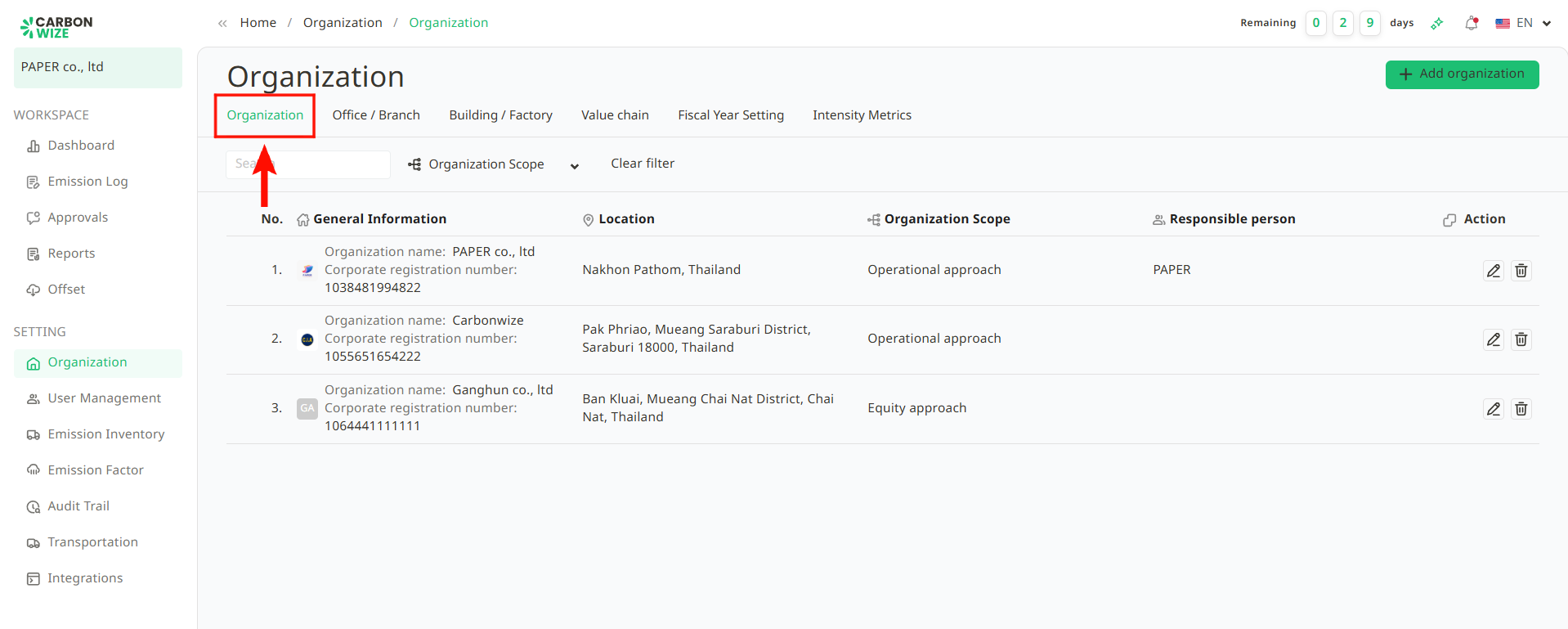
Select the organization user want to edit and click the pencil icon.
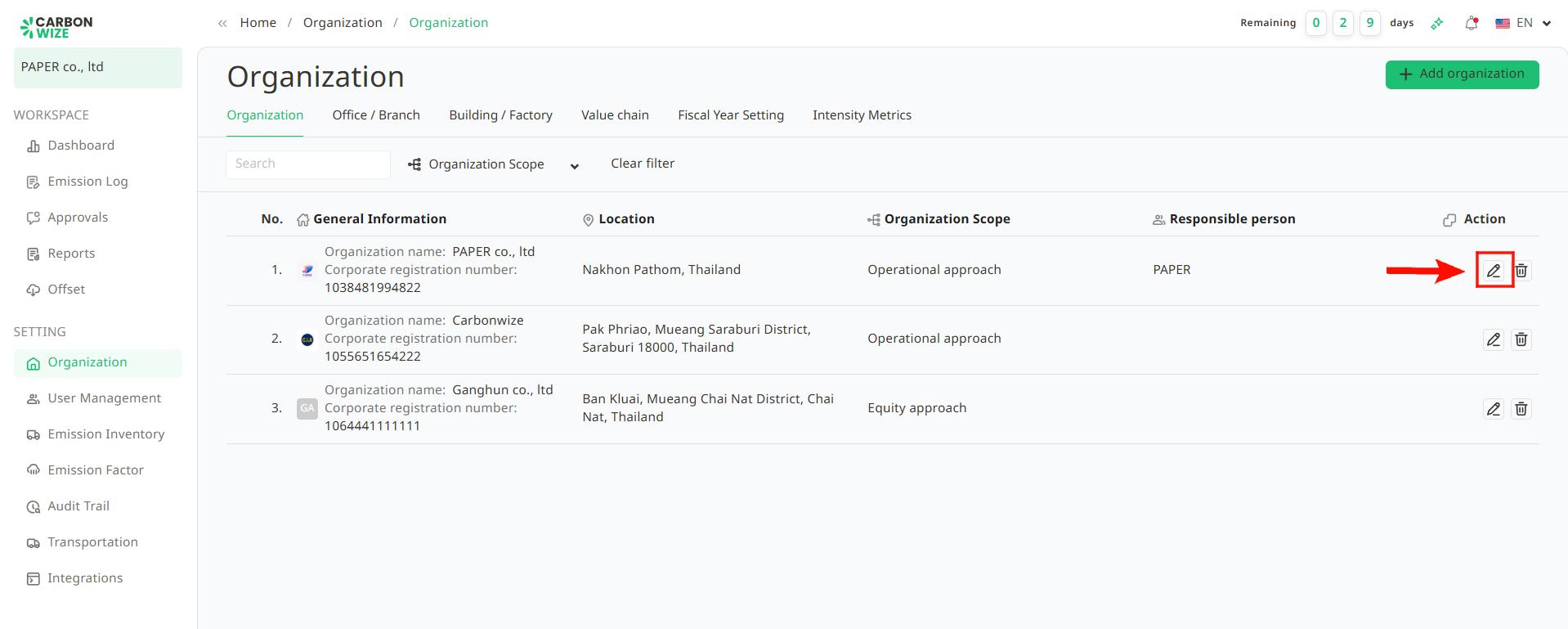
A window with the organization's details will appear. User can now edit the information as needed.
When the user finishes editing, click the Save button.
Editing Office or Branch Details :
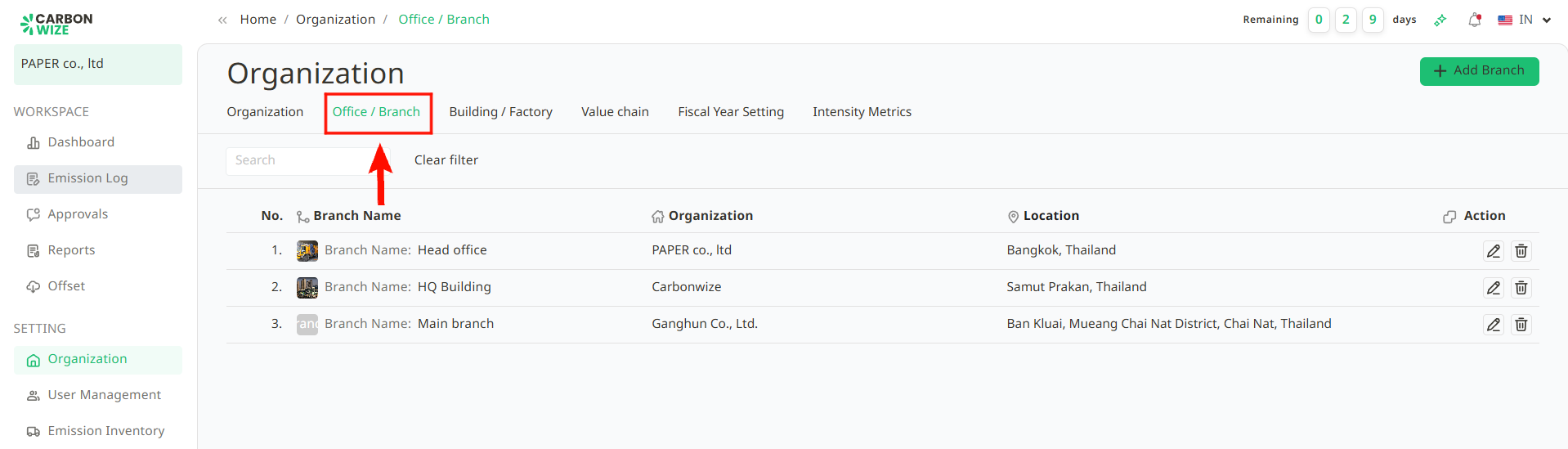
Go to the Organization Settings page and select the Office / Branch tab.
Select the office or branch user want to edit and click the pencil icon.
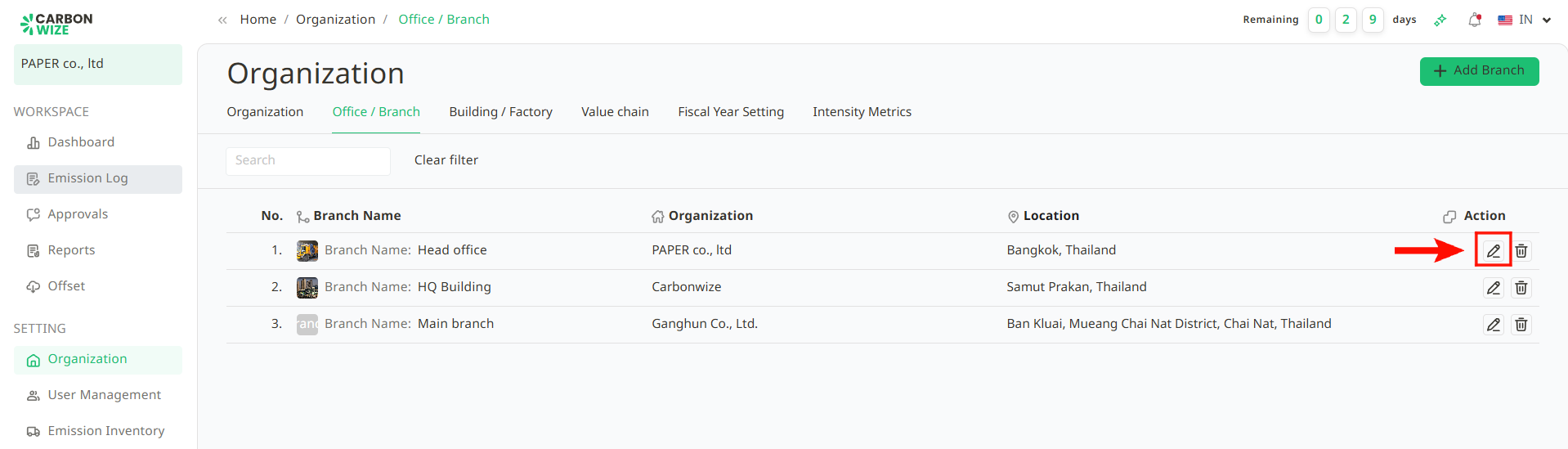
A window with the office or branch's details will appear. User can now edit the information as needed.
When user finishes editing, click the Save button.
Editing Building or Factory Details :
Go to the Organization Settings page and select the Building / Factory tab.
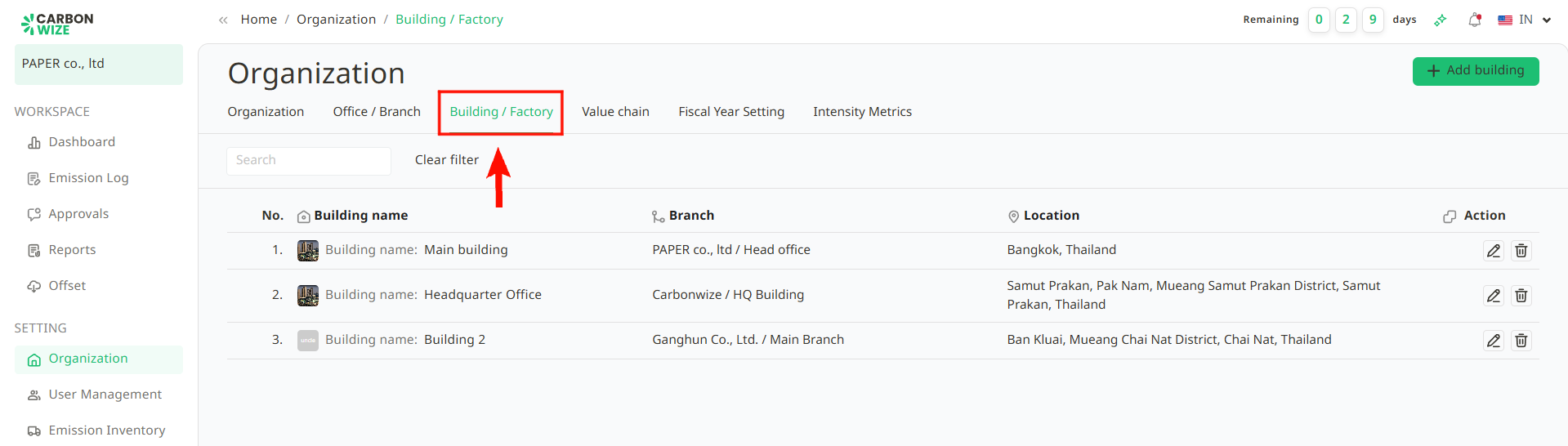
Select the building or factory user want to edit and click the pencil icon.
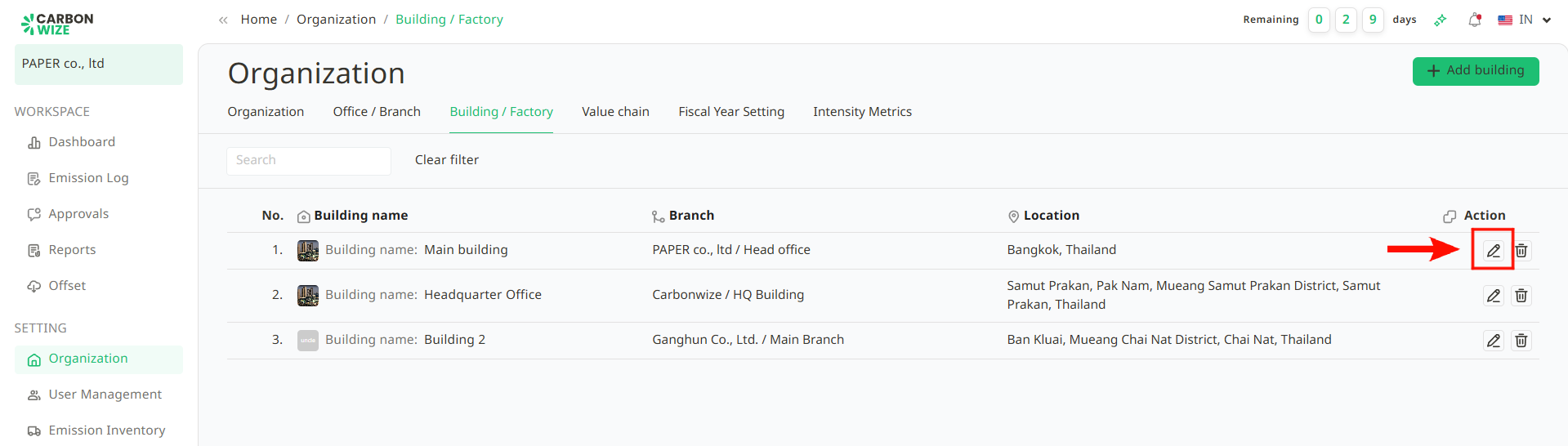
A window with the building or factory's details will appear. User can now edit the information as needed.
When user finishes editing, click the Save button.
Was this article helpful?
That’s Great!
Thank you for your feedback
Sorry! We couldn't be helpful
Thank you for your feedback
Feedback sent
We appreciate your effort and will try to fix the article